PlanEBin the studio
Electrical panel
Electrical panel places the board the circuits start from: a click on a wall puts it there, and once the phase has one, a click moves it and every circuit follows. Ctrl and a click adds another panel instead.
What it is
The electrical panel is where the circuits start. Its tool is not a plain placement: the first click on a wall places the panel, and every click after that moves the panel of the phase you draw in to the wall you click, rather than adding one. The circuits follow at once, laid again from the panel's new place. Held with Ctrl, a click adds another panel instead.
The list beside the tools offers the board kinds of your template, such as a panelboard in a project under the US template. The panel is set into its wall as a cabinet. With more than one panel, each device is fed by the nearest one along the cable's way, unless its own panel names another, and each panel numbers its circuits on its own.
When to use it
- Placing the panel of a new installation, before or after the devices.
- Trying the panel in another place and seeing the circuits laid again from there.
- Adding a sub-panel, such as one for a garage or an upper floor.
The steps
Take the tool. Type
EthenBquickly, or pick it on the toolbar, where it shares one button with Electrical device. The status bar says that a click on a wall moves the phase's panel there and that Ctrl and a click adds another.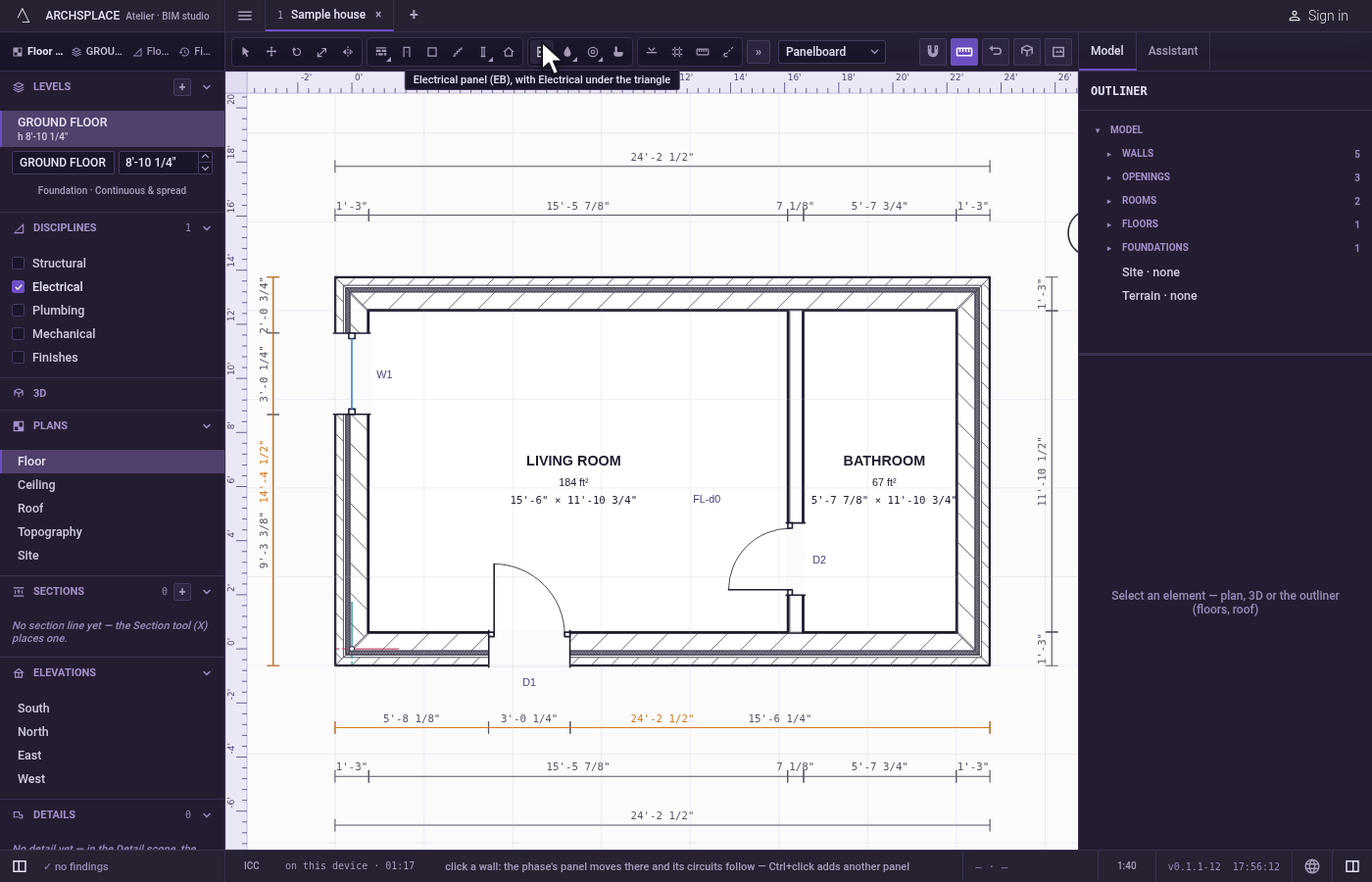
Choose the kind. Pick it in the list beside the tools, if your template offers more than one.
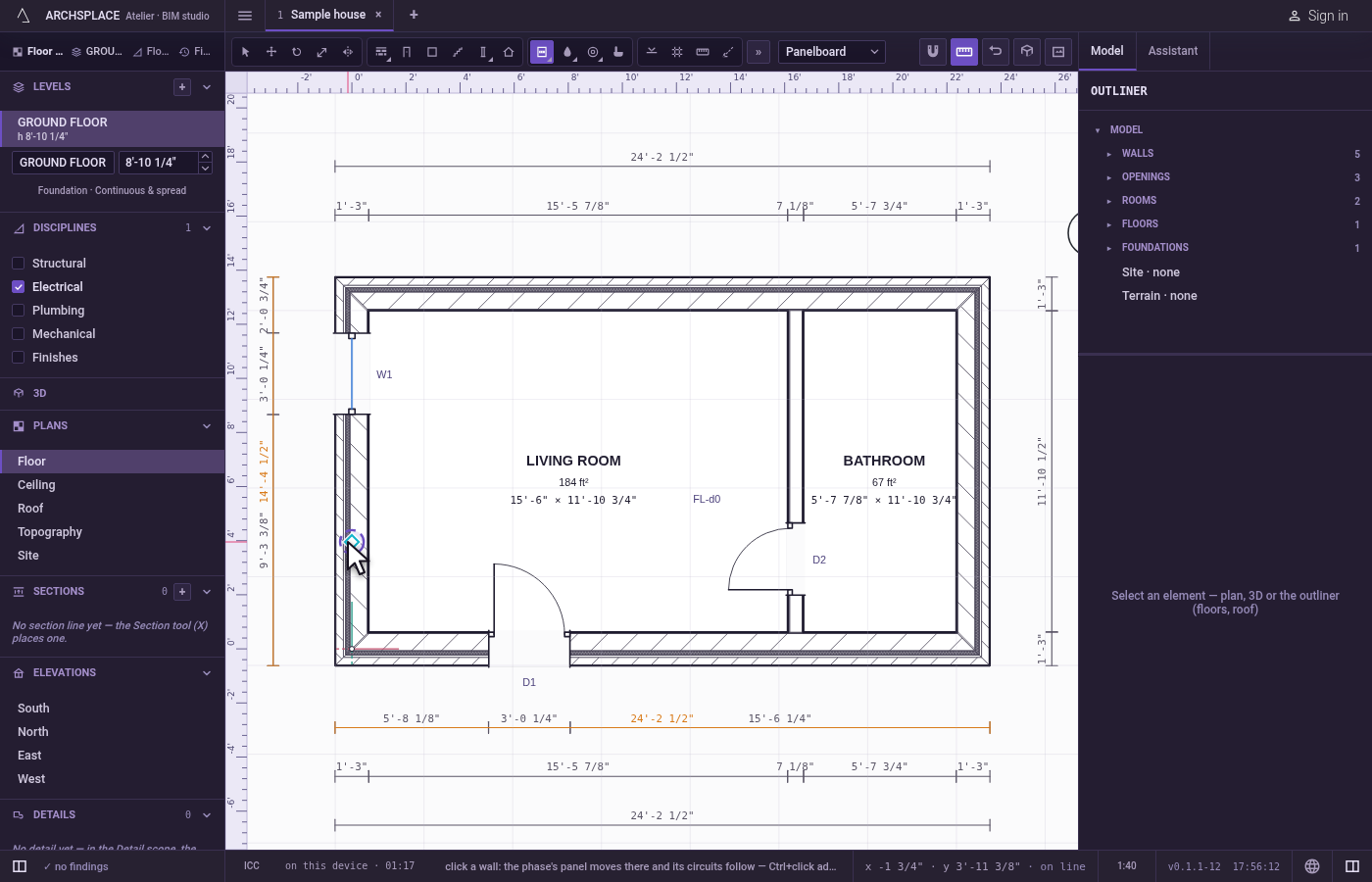
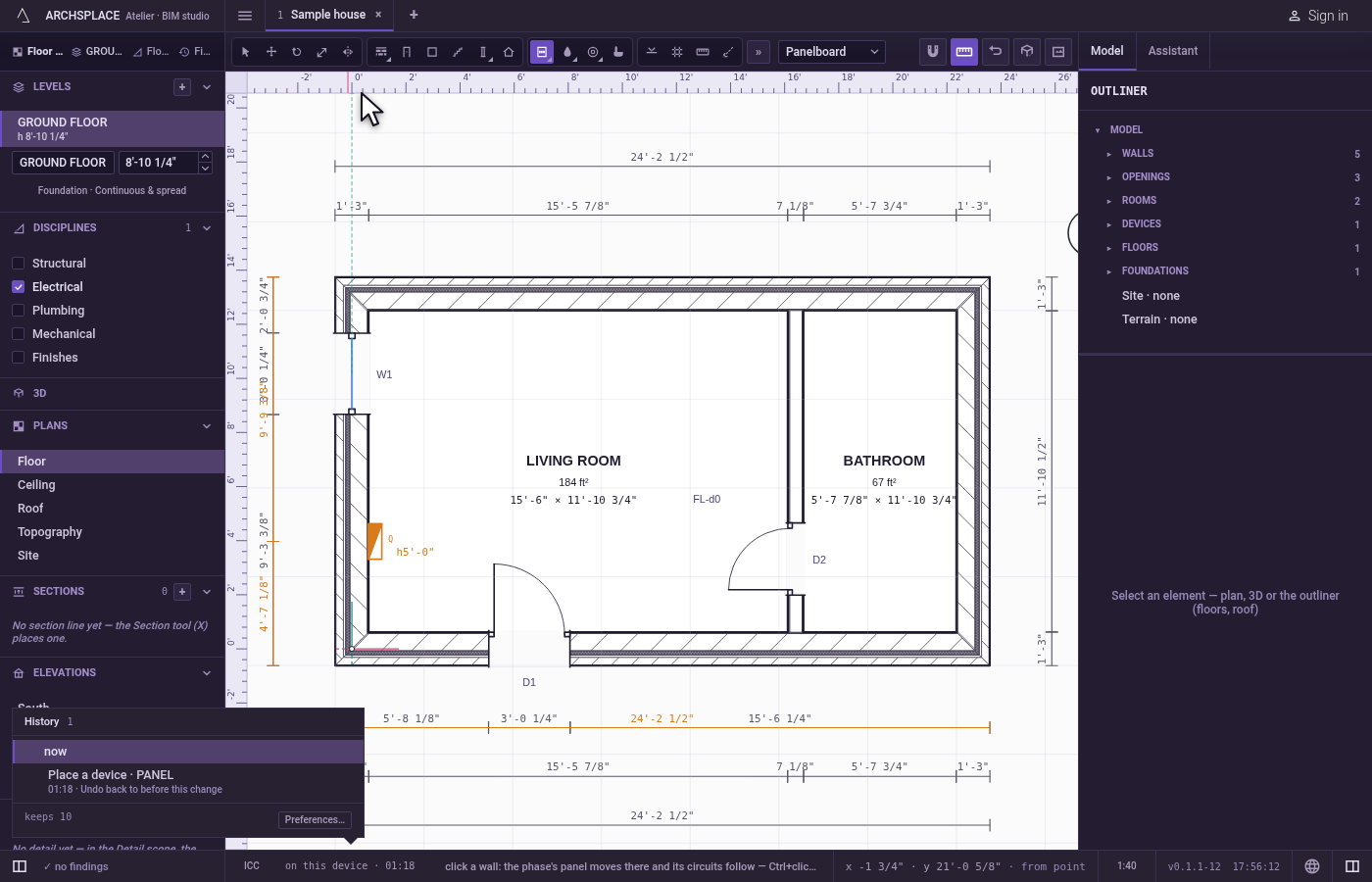
Click a wall. Click on the wall or within about 60 cm (2 ft) of it, on the face the panel should face. With no panel yet in this phase, it is placed there. With one or more, the nearest one on this level moves there (the first one, if none stands on this level), and the circuits follow.
Add another, with Ctrl. Hold
Ctrl(⌘on a Mac) as you click: a new panel is placed, and the panels share the devices.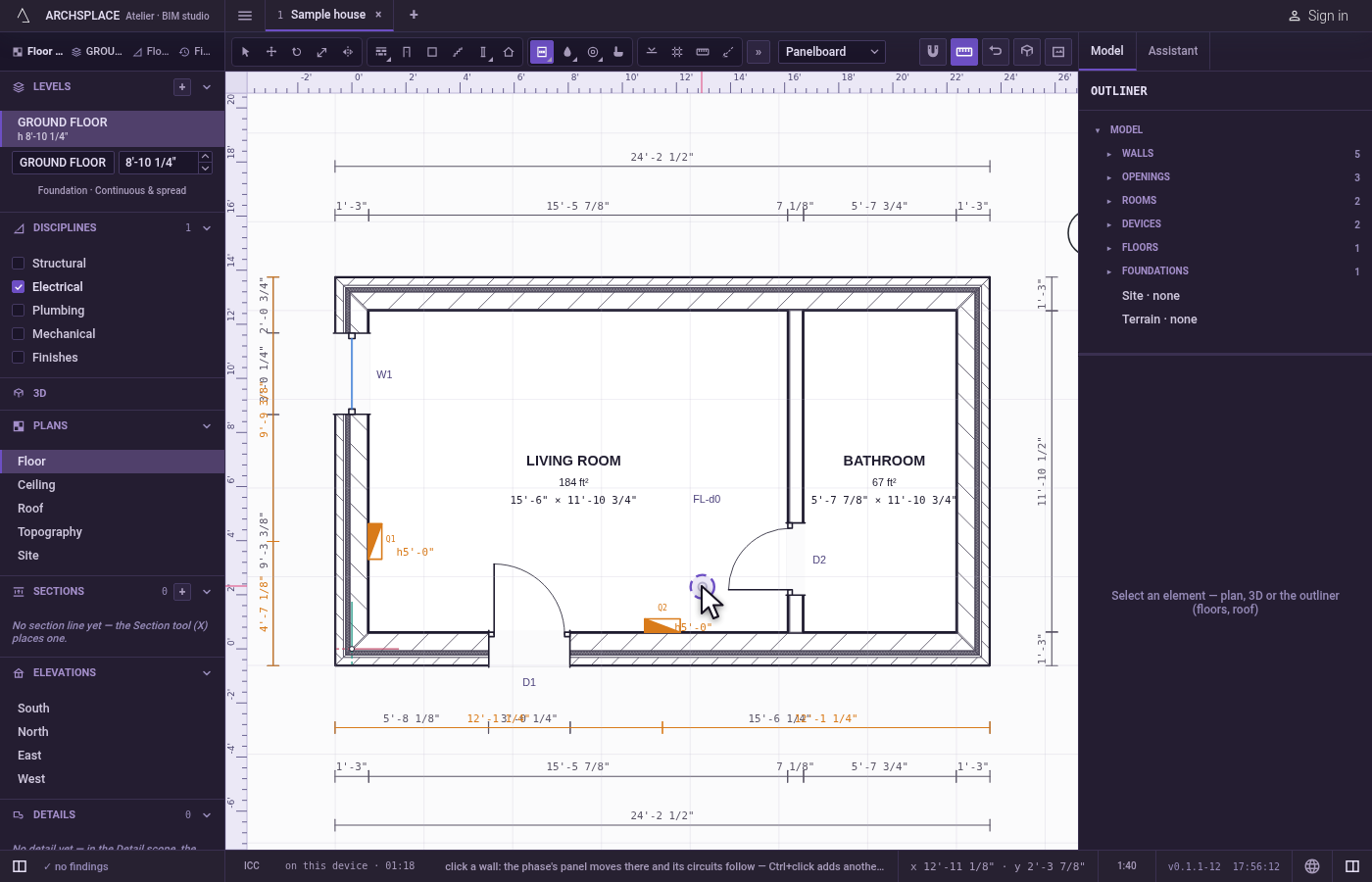
What it refuses
- A click far from every wall. Farther than about 60 cm from any wall, nothing is placed or moved.
- A device fed from something that is not a panel. A device whose panel names anything other than an electrical panel is refused by the project.
What it writes to the contract
One step, which one undo takes back. The first panel, and every panel added with Ctrl, adds one device entry: its kind, its wall, its distance along the wall and its face, and its phase. A move changes only the moved panel's wall, distance and face. The circuits are never written: they are worked out from the devices and the panels each time the project is built.
Concepts
Related
Common questions
How do I move the electrical panel?
Take the Electrical panel tool and click the wall where it should stand. The panel moves there and every circuit is laid again from its new place.
Can a project have two panels?
Yes. Hold Ctrl (Command on a Mac) as you click to add another panel. Each device is then fed by the panel nearest along the cable's way, unless you choose one in the device's panel, and each panel numbers its own circuits.