Workflows
Copy, paste, select all and delete
Copy, Paste, Select all and Delete are the four verbs of the Edit menu, with the same keys in every view and every editor. Copy remembers what is selected, Paste lands a copy from an anchor point you click to the point where it lands, Select all takes everything the view in hand can select, and Delete takes the selection out of the project.
What it is
The four verbs stand in the Edit menu, each with its key, the same in every view:
- Copy,
Ctrl+C(⌘Con a Mac): remembers what is selected in the project in hand. A toast says how many elements were copied and how to paste them. - Paste,
Ctrl+V: hands the copy to the Move tool of the view in hand, the plan's or the 3D's. The first click picks the anchor point on the copy, the second where it lands, and the copy is made at that second click, exactly as a copy with the Move tool would. A face pastes its hole, a component pastes another copy of the same component. Escape, or another tool, cancels. - Select all,
Ctrl+A: takes everything the view in hand can select. - Delete,
DeleteorBackspace: takes the selection out of the project. The key deletes while the Select tool is in hand; with a drawing tool in hand, it is left to that tool.
The right-click menu carries them too: over a selection, Copy, Paste, Properties and Frame selection; over empty space, Paste, Select all and Frame everything. Each item is greyed when it cannot run, its hover saying why.
While an editor of its own is open, the tile editor or the sketch editor, the four verbs work inside it: Select all takes its lines, Delete its selection. Copy and Paste, which work on the project, are refused there, with the way back through the editor's own Done or Cancel.
When to use it
- Repeating a wall, a window or a piece of furniture elsewhere, from a precise point.
- Copying a set of elements from one place of the plan to another.
- Selecting everything in a view to move it or to look at it.
- Clearing a selection out of the project.
The steps
Select and copy. With the Select tool, click a wall, then Shift-click a second one. Press
Ctrl+C. A toast says Copied 2 elements, then to pressCtrl+Vand click the anchor point and where it lands.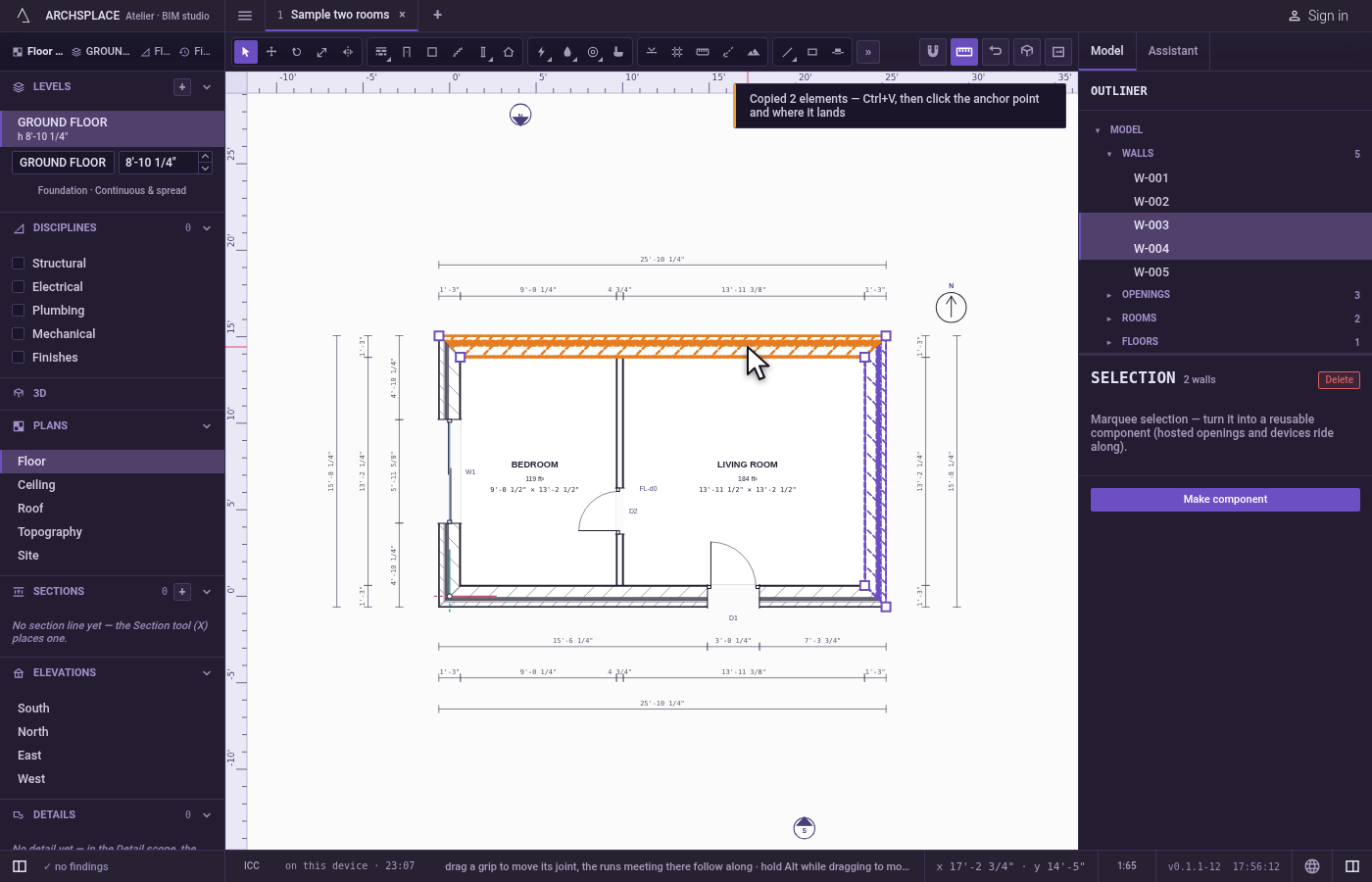
Paste. Press
Ctrl+V. The Move tool is in hand, and a toast says to click the anchor point on the copy, then where it lands.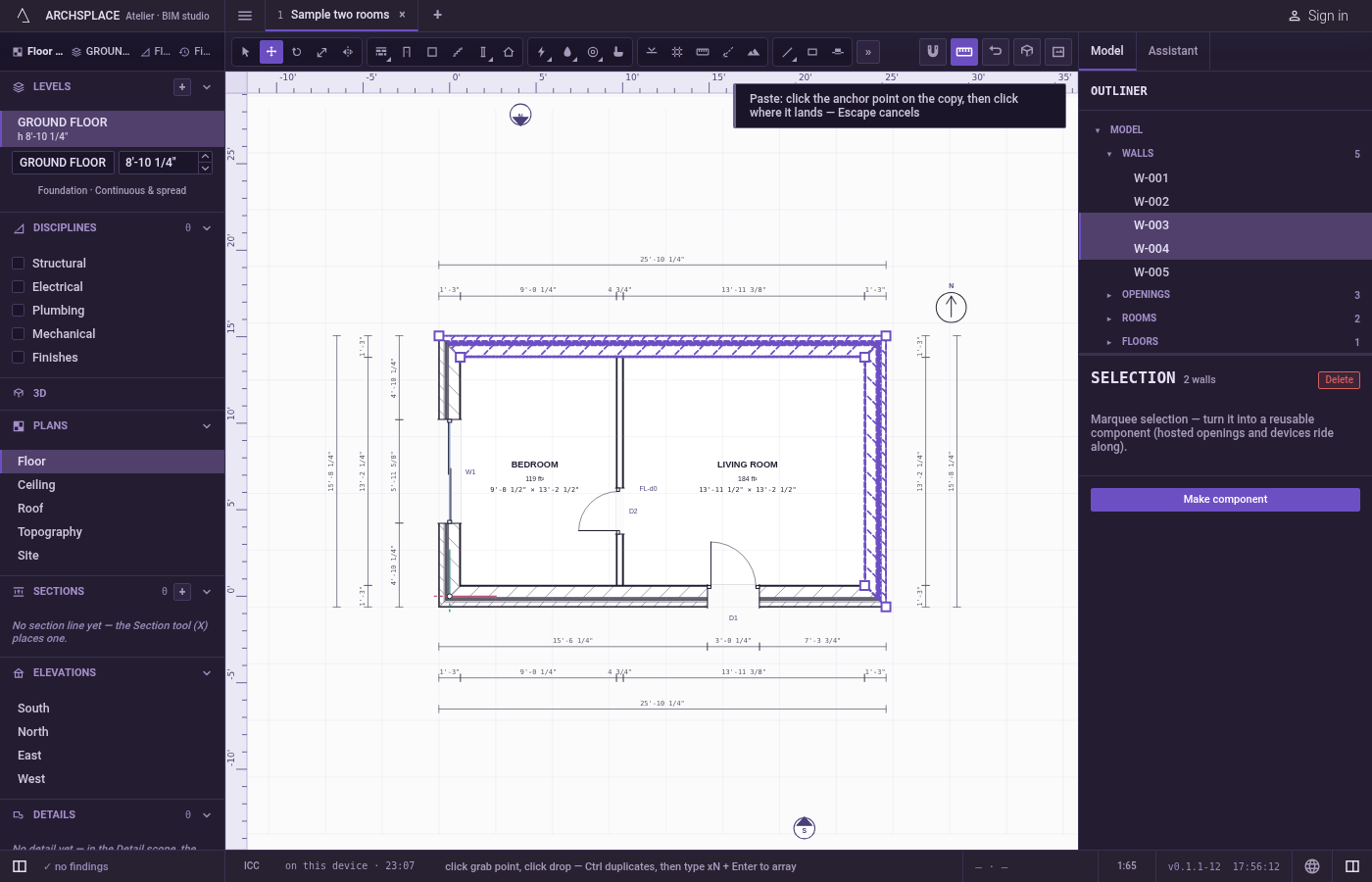
Click the anchor point. Click the corner where the two walls meet.
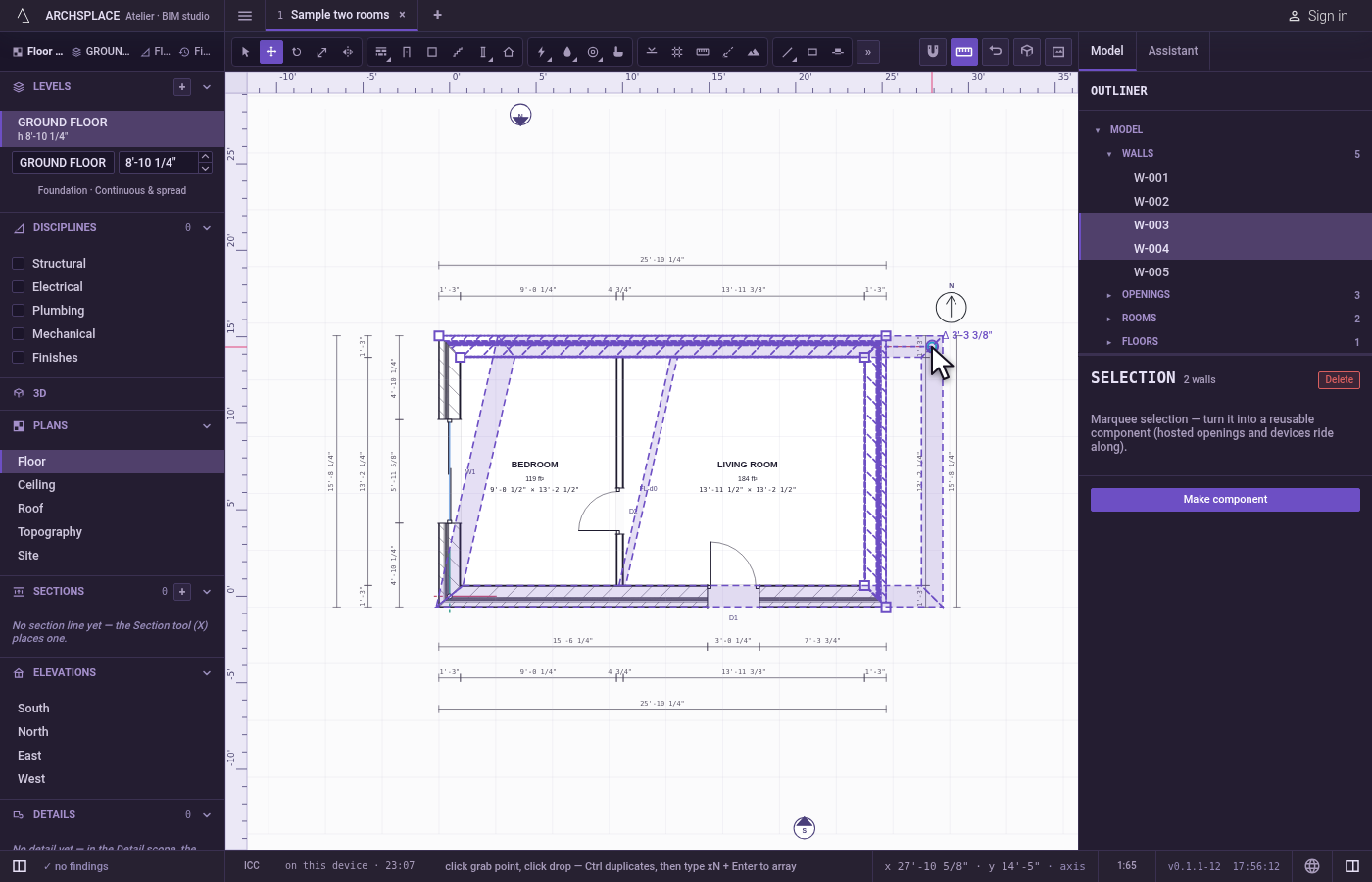
Click where it lands. Click the point where that corner should land. The two walls are copied there.
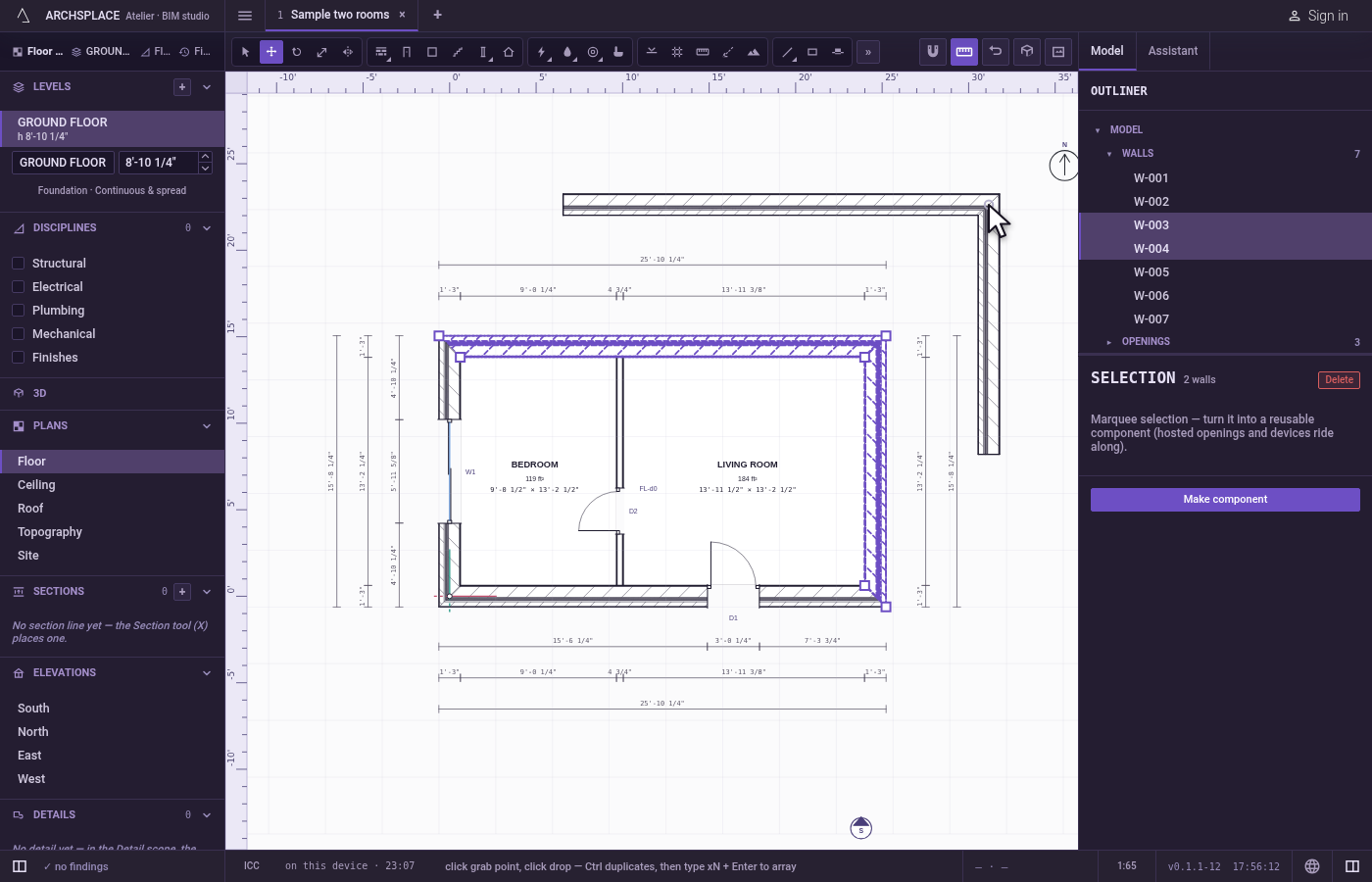
Select all. Press
Ctrl+A. Everything the plan can select is selected.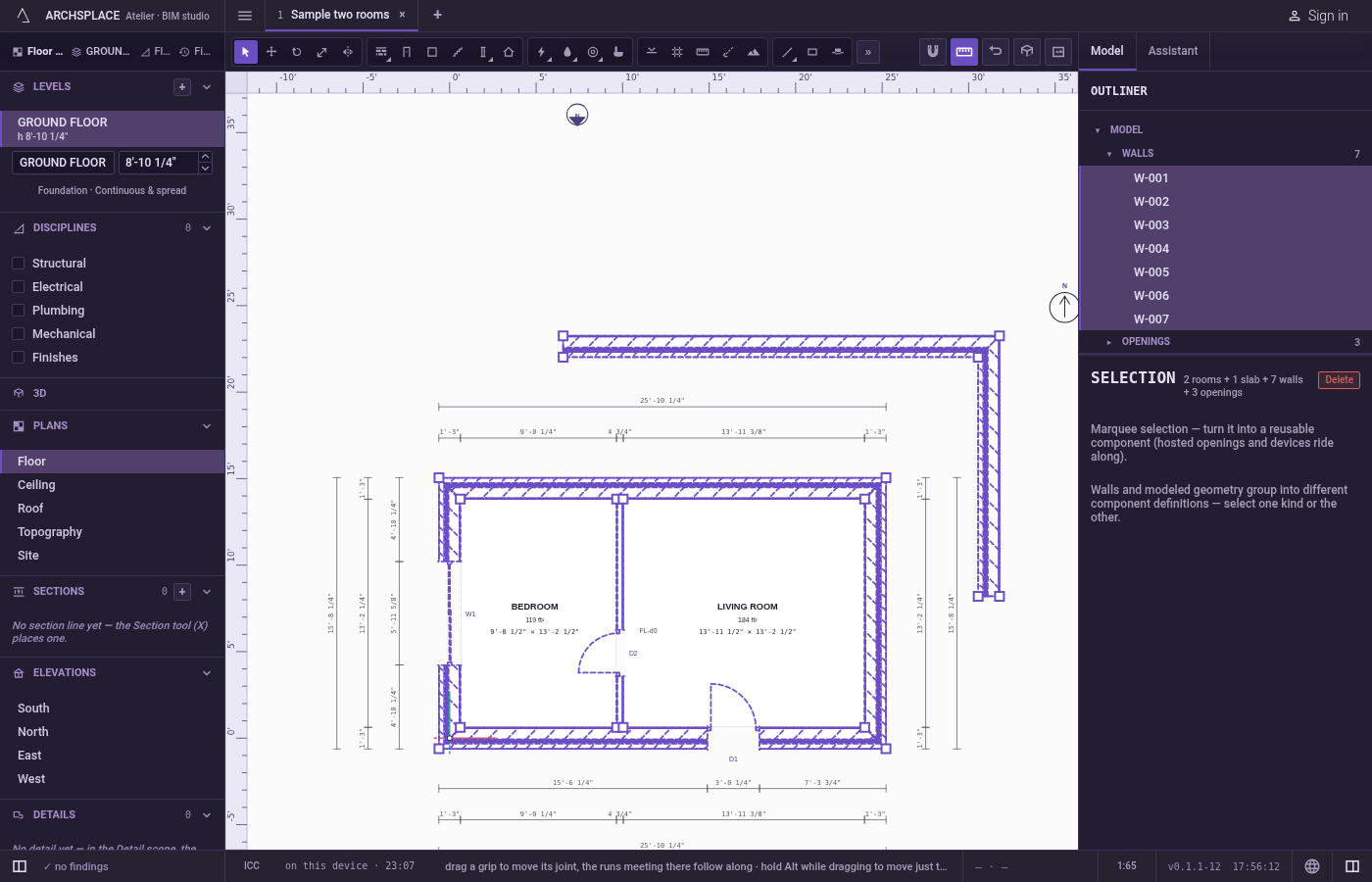
Delete. Press
Escapeto clear the selection, select one of the copied walls and pressDelete. It goes.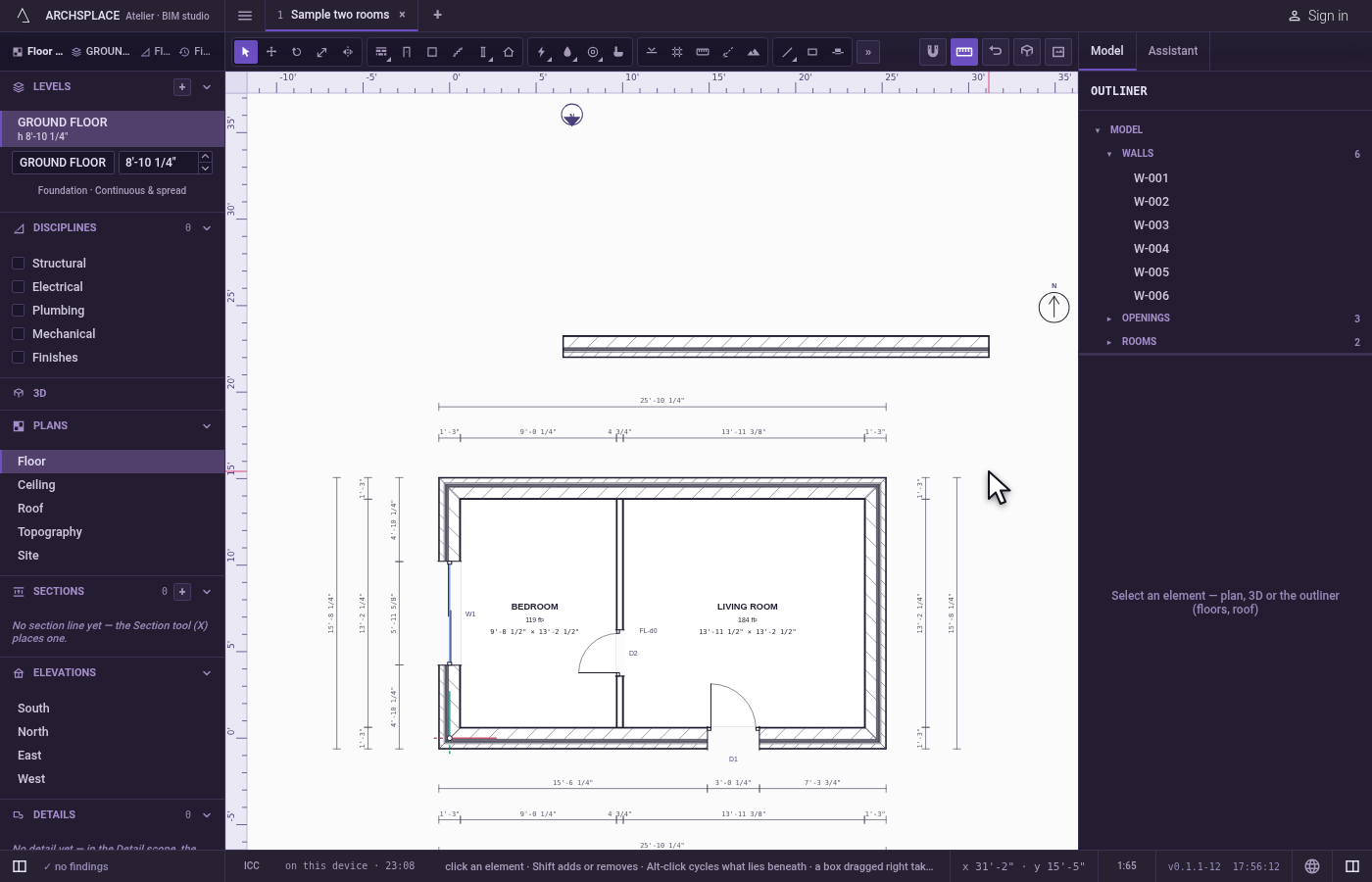
What it refuses
- Copy with nothing selected. A toast says there is nothing selected to copy.
- Paste with nothing copied. It asks you to select something and copy it first.
- Paste of a copy from another project. It asks you to copy again in this one.
- Paste of elements deleted since they were copied. It says they are no longer in the project.
- Select all where nothing can be selected, such as a view with nothing in it.
- Deleting what cannot be deleted on its own. The toast says how many were deleted, how many refused, and why.
- Copy and Paste inside the tile or the sketch editor. They work on the project: the refusal names the editor and its way back.
What it writes to the contract
Copy and Select all write nothing: the clipboard and the selection belong to the session. Paste writes the copies, one change that one Ctrl+Z takes back. Delete writes the project without what was deleted, keeping every other element's references right, one change too.
Common questions
Why does Paste ask me to click twice?
Because a paste lands from a point: the first click picks the anchor point on the copy, such as a corner of the wall, and the second where that point lands. Nothing is placed until the second click, and Escape cancels.
Can I paste into another project?
No. The clipboard holds the selection of the project in hand. In another project, Paste is refused and asks you to copy again there.
Why did Delete leave some elements?
Some elements cannot be deleted on their own, such as what the model derives. The toast says how many were deleted, how many were refused, and why.