SketchXin the studio
Explode in the tile editor
Explode breaks the shapes you select into their separate segments: a rectangle becomes four joints, a polyline one joint per segment, and arcs stay arcs. A lone line and a circle have no parts, so they are left whole.
What it is
A rectangle, a polygon or a polyline is one joint: it is selected, moved and erased whole. Explode takes it apart. Each segment of the shape becomes a joint of its own, in the same place, and a curved segment stays a true arc. A rectangle with rounded corners gives its four sides and its four corner arcs. The new joints are selected, ready for the next action.
It is the same Explode as in the other editors of the studio, acting here on the joints of the tile.
When to use it
- To remove, move or trim one side of a rectangle or a polygon.
- To work on one segment of a polyline alone.
- To open a closed shape into separate lines.
The steps
Choose the shapes. Select them before taking the tool, and Explode acts on them at once. Otherwise Explode asks select objects: click joints to add them, or drag a box (to the right it takes what lies wholly inside, to the left what it touches),
Shifttakes a joint out, andFdraws a fence that takes every joint it crosses.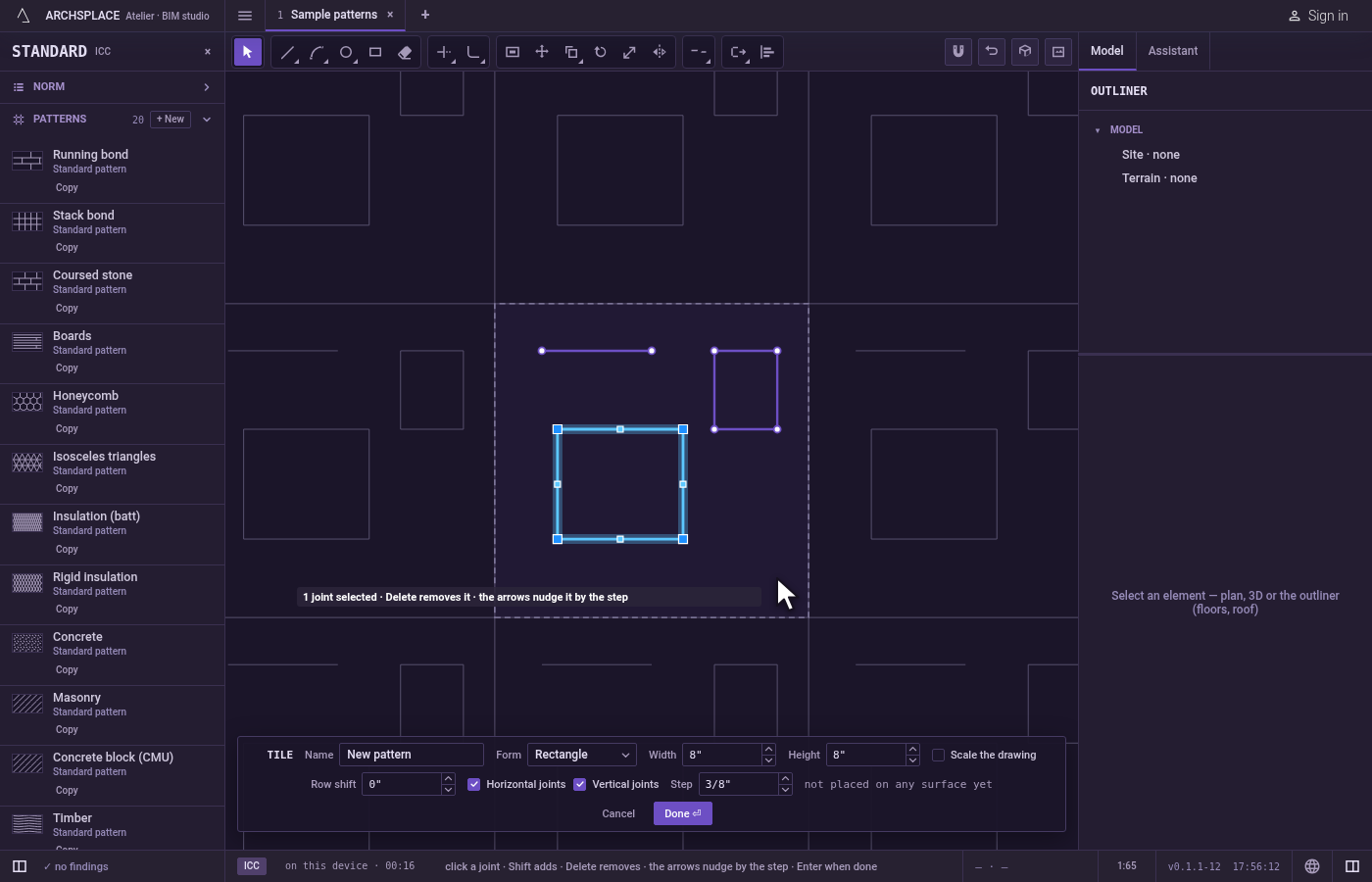
Take the tool. Press
X, or click Explode on the bar. It shares its button with Break and Join.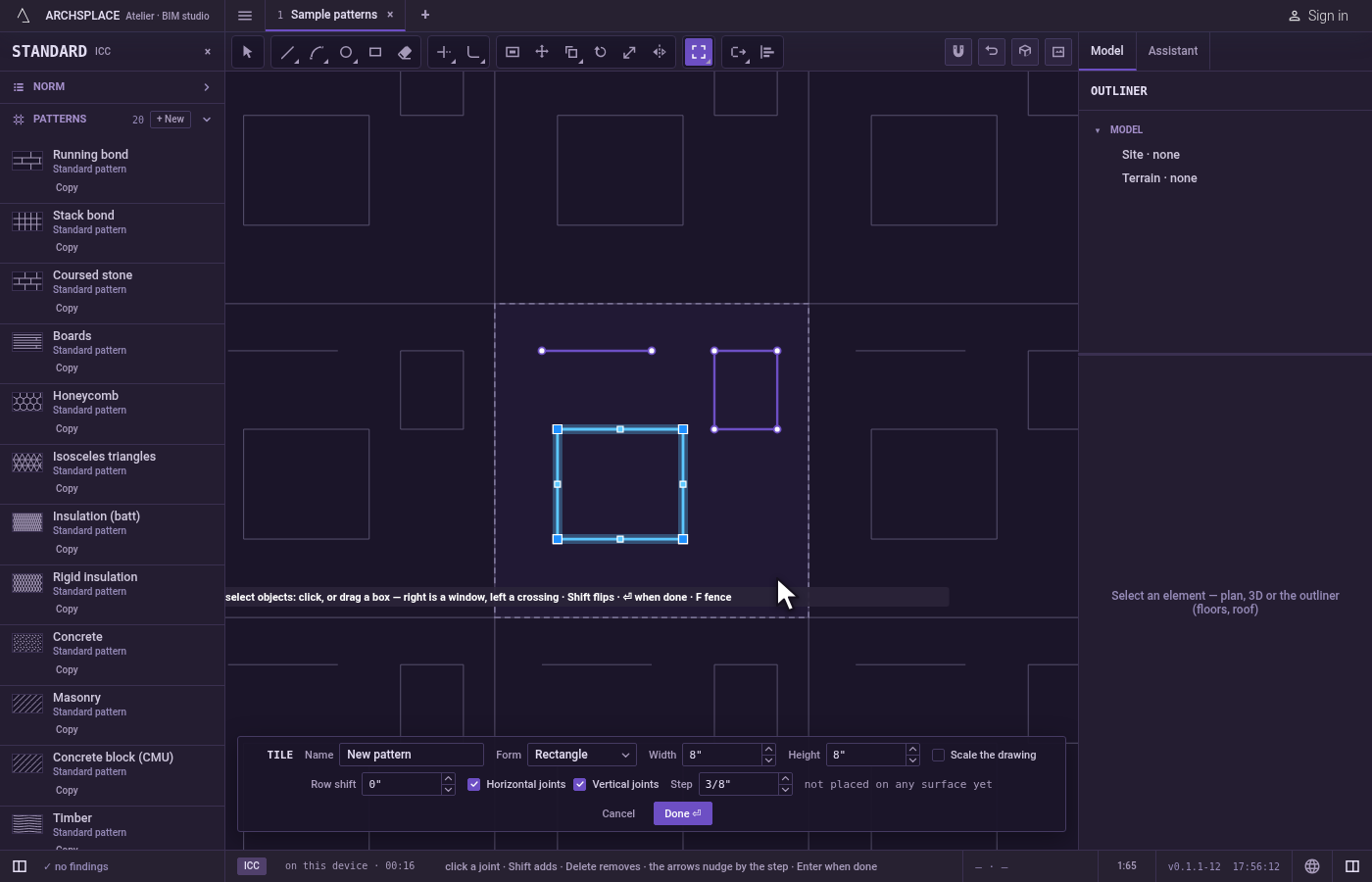
Explode. If you chose the shapes in the tool, press
Enter(orSpace, or the right button). The editor says how many parts came out and how many joints were left whole, and the parts are selected.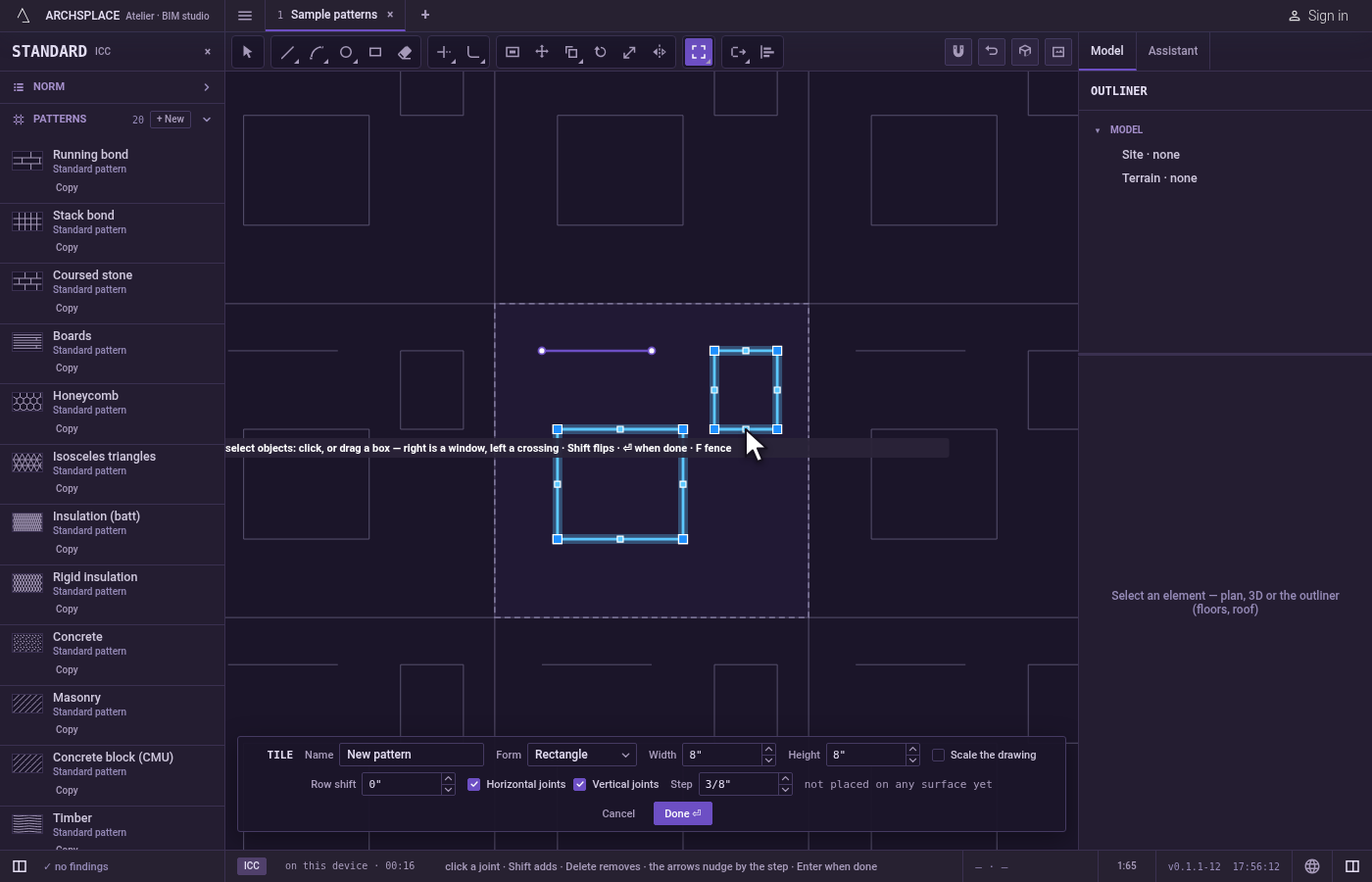
Explode more or finish. Explode then asks select objects again.
Escapeleaves Explode for Select.Ctrl+Zputs the shape back together. Press Done on the bar at the foot to hand the tile back.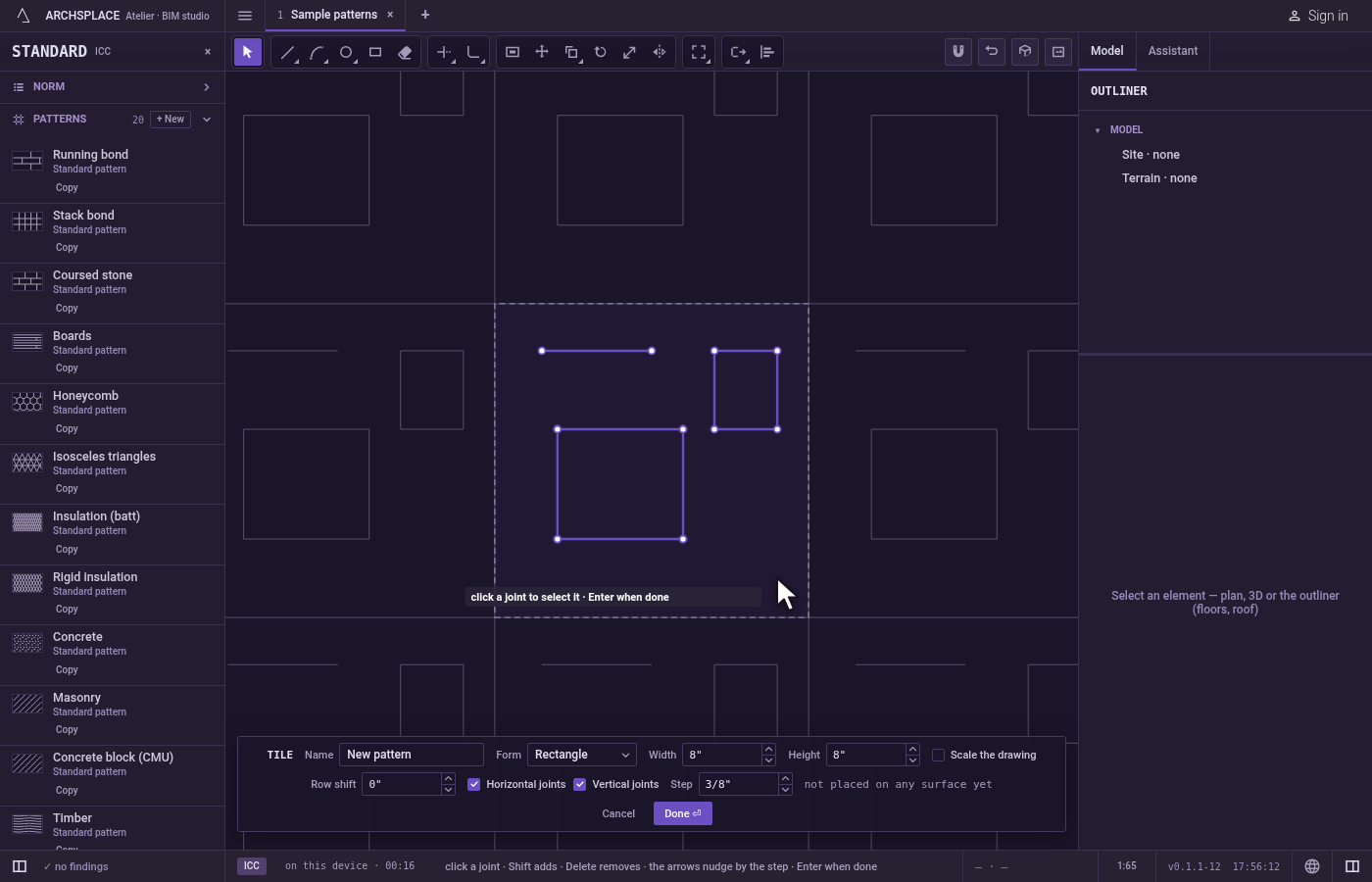
What it refuses
- A joint with no parts. A lone straight joint, a single arc and a circle have nothing to split, so they are left whole and counted. When nothing in the selection can be exploded, the editor says nothing to explode.
- Enter with nothing chosen. Explode keeps asking select objects.
What it writes to the contract
Nothing while you work: the change stays in the tile editor, where Ctrl+Z steps back through it. When you press Done, the whole tile is written to the project's patterns in one step you can undo, every joint as its points in metres from the tile's lower-left corner, each part of an exploded shape as a joint of its own. A standard pattern is never changed: Done saves the project's own version of it under the same name, and every surface that lays it follows. Save as new writes a new pattern instead. Cancel writes nothing.
Related
Common questions
How do I delete one side of a rectangle?
Select the rectangle, take Explode (key X): it becomes four separate joints. Then select the side you do not want and press Delete.
Why does Explode not work on my circle?
A circle has no separate segments to give, so it is left whole and counted. To keep part of it, use Break or Trim, which leave an arc.
Can I put the pieces back together?
Yes. Select them and use Join, or press Ctrl+Z right after exploding.