SketchCDin the studio
Circle by 2 points in the tile editor
Circle by 2 points draws a round joint inside a pattern's tile from the two ends of its diameter. The circle is one joint, and it must stand whole inside the tile.
What it is
Circle by 2 points draws a circle that passes through two points you pick, which are the two ends of its diameter. Its center is halfway between them. The points snap to the tile's corners, the middles of its sides, its centre, its edges and the joints already drawn, so a circle can fit exactly between two of them. The circle is one joint, selected, moved and erased whole.
It is the same Circle by 2 points as in the other editors of the studio, acting here on the joints of the tile.
When to use it
- To fit a circle exactly between two points you already have, such as the middles of two sides of the tile.
- To draw a circle whose diameter is the length of an existing joint.
- When you know the center and the radius, Circle is quicker.
The steps
Take the tool. Type
CthenDone after the other, or click Circle by 2 points on the bar. It shares its button with Circle, Circle by 3 points and Polygon. TheCopens Circle for a moment, and theDcompletes this one.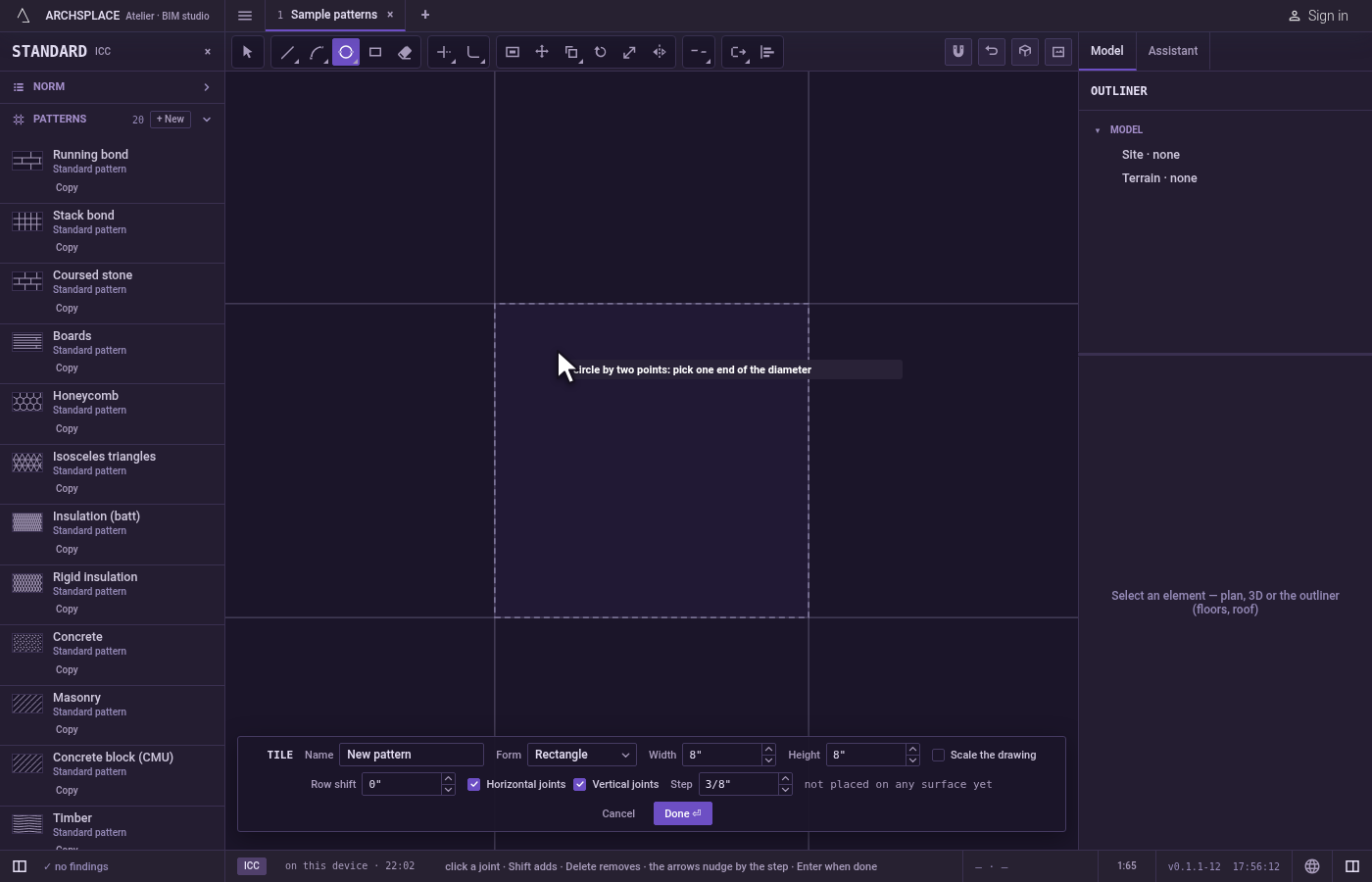
Pick one end of the diameter. Click it, or type
x;yand pressEnter, measured from the tile's lower-left corner.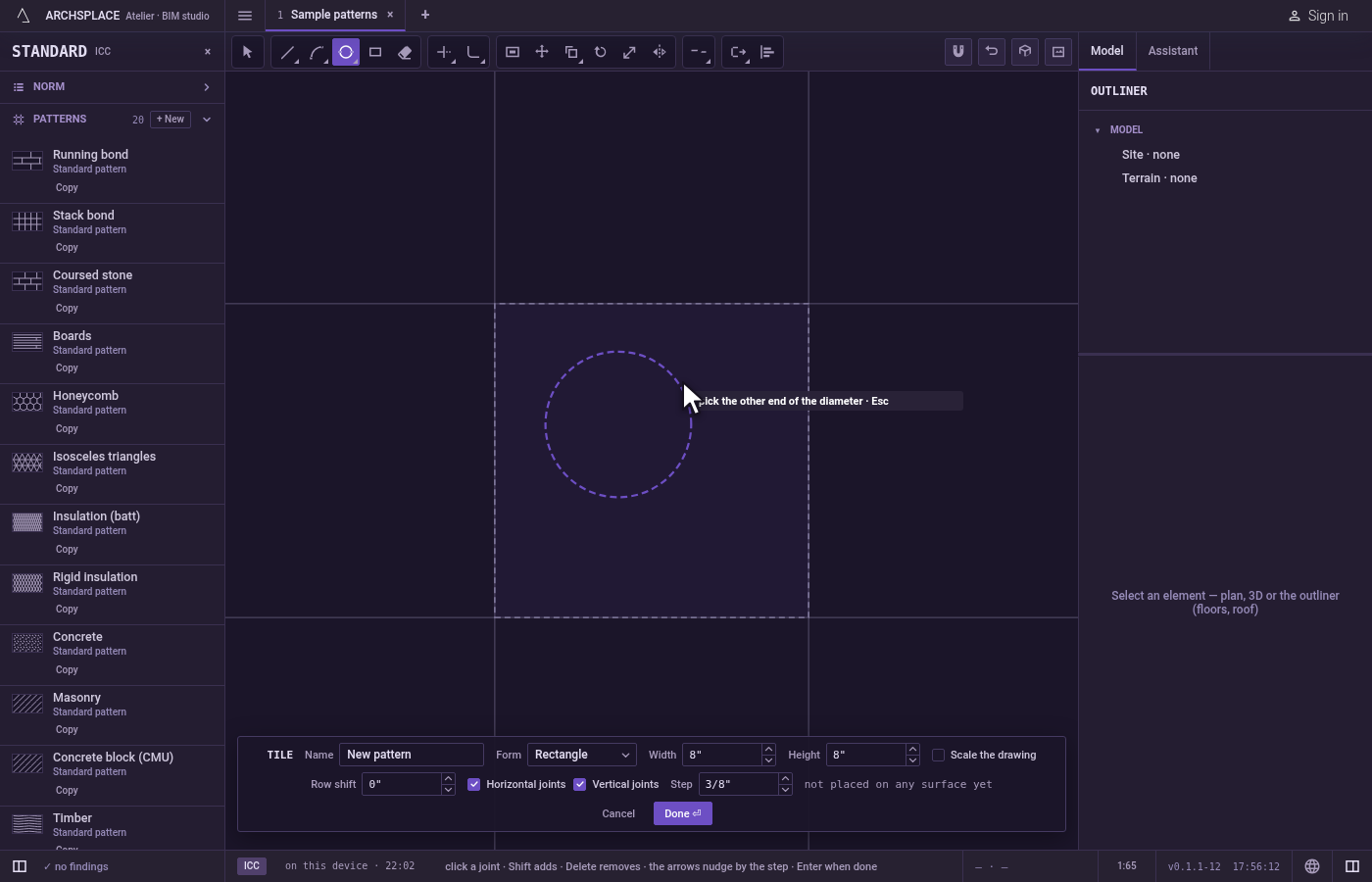
Pick the other end. A ghost circle follows the pointer. Click the other end, or type it as a point measured from the first end (
@dx;dy, or@d<angle) and pressEnter. If the ghost is drawn in the refusal colour, the click would be refused.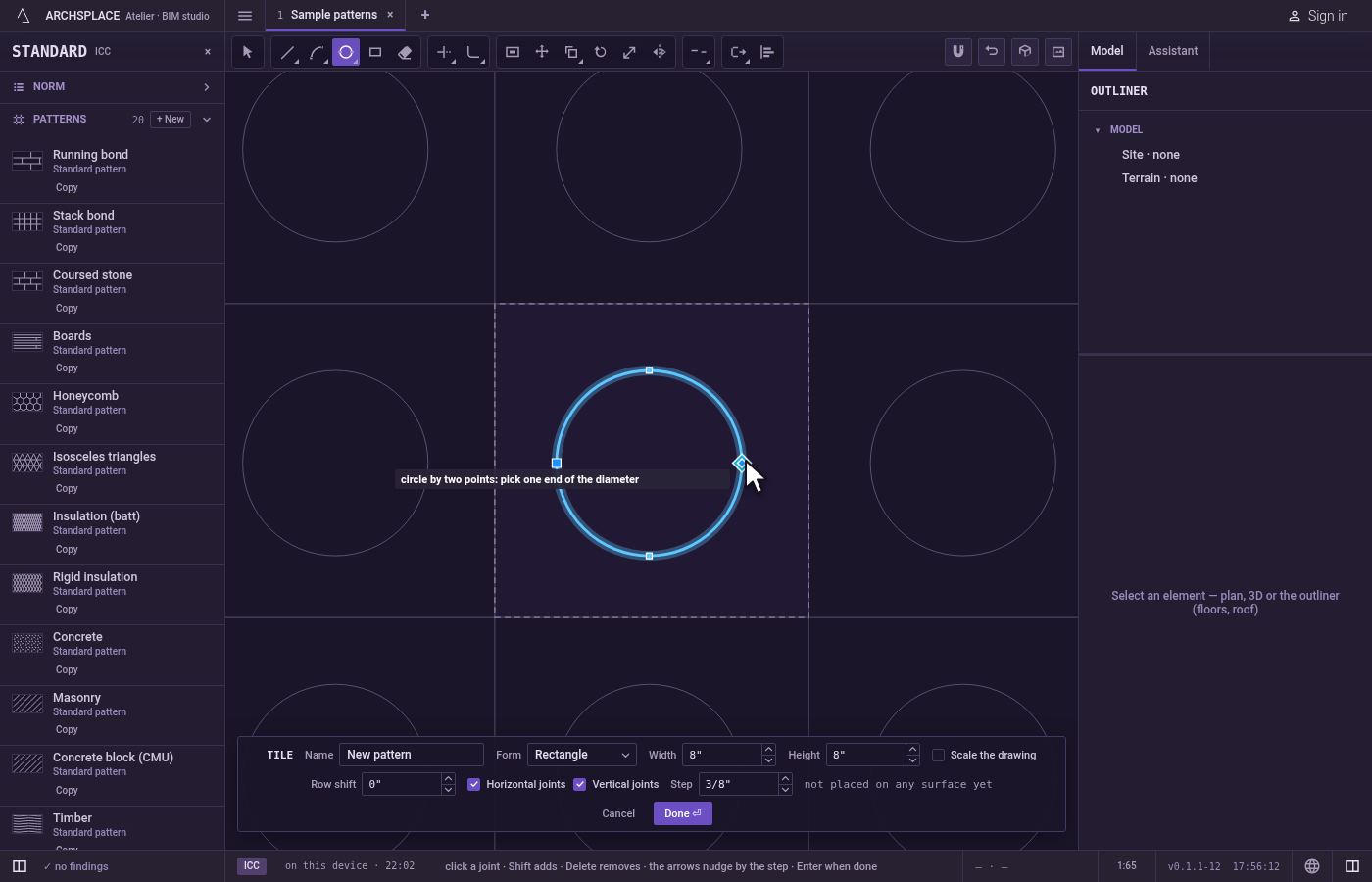
Draw the next one or finish. The circle stands, selected, and the tool waits for a new first point.
Escapedrops the first point, then leaves the tool for Select.Ctrl+Zundoes the last circle. Press Done on the bar at the foot to hand the tile back.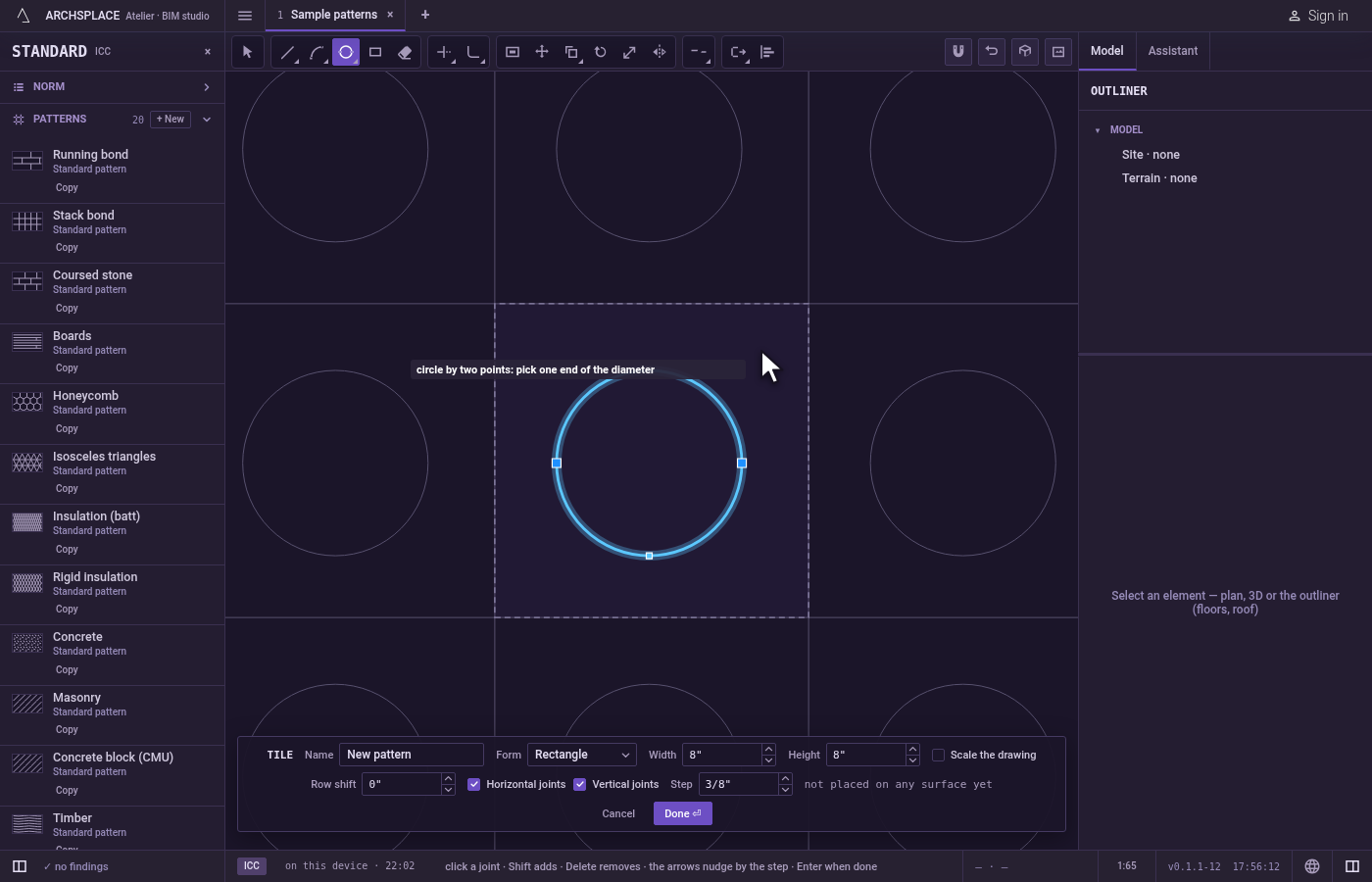
What it refuses
- A circle that leaves the tile. If any part of it would stand outside the tile, nothing is drawn, and the editor says a shape must stay inside the module.
- Two points that are one. They make no shape, and the hint says that point makes no shape.
- A circle too small. A circle whose radius is under a millimetre is refused with a joint under 1 mm is refused.
What it writes to the contract
Nothing while you work: the change stays in the tile editor, where Ctrl+Z steps back through it. When you press Done, the whole tile is written to the project's patterns in one step you can undo, every joint as its points in metres from the tile's lower-left corner. A circle is stored as one closed joint made of two half circles. A standard pattern is never changed: Done saves the project's own version of it under the same name, and every surface that lays it follows. Save as new writes a new pattern instead. Cancel writes nothing.
Related
Common questions
When is a circle by two points easier than a circle by its center?
When you know two opposite points of the circle, for example the middles of two sides of the tile, or the ends of an existing joint. The circle fits exactly between them.
Can I type the diameter?
Not as a single number. After the first end, type the second end as a point: @0.1;0 places it 10 cm to the right with the project in metres, or @0.1<90 straight up.