SketchLENin the studio
Lengthen in the tile editor
Lengthen makes a joint longer or shorter from the end you click, along its own line or arc, by a change you type, to a percent of its length, to a total length, or to where you drag the end. Only the segment at that end changes.
What it is
Lengthen changes a joint's length without changing its direction. You say how, then click the joint near the end to move: that end slides along the joint's own line, or around its own circle for an arc, while the other end stays. On a polyline, only the segment at that end changes. The hint shows the length before and after as you point.
There are four ways to say how:
- Delta (
D, the way it starts in): a change you type, added to the length, negative to shorten. - Percent (
P): the new length as a percent of the present one. - Total (
T): the length the joint should have. - Dynamic (
Y): drag the end to where it should be.
It is the same Lengthen as in the other editors of the studio, acting here on the joints of the tile.
When to use it
- To give a joint an exact length, or change it by an exact amount.
- To shorten a joint without having another joint to trim against.
- To make an arc sweep further or less around its own circle.
The steps
Take the tool. Type
L,E,None after the other, or click Lengthen on the bar. It shares its button with Stretch. TheLopens Joint for a moment, and the letters that follow complete Lengthen.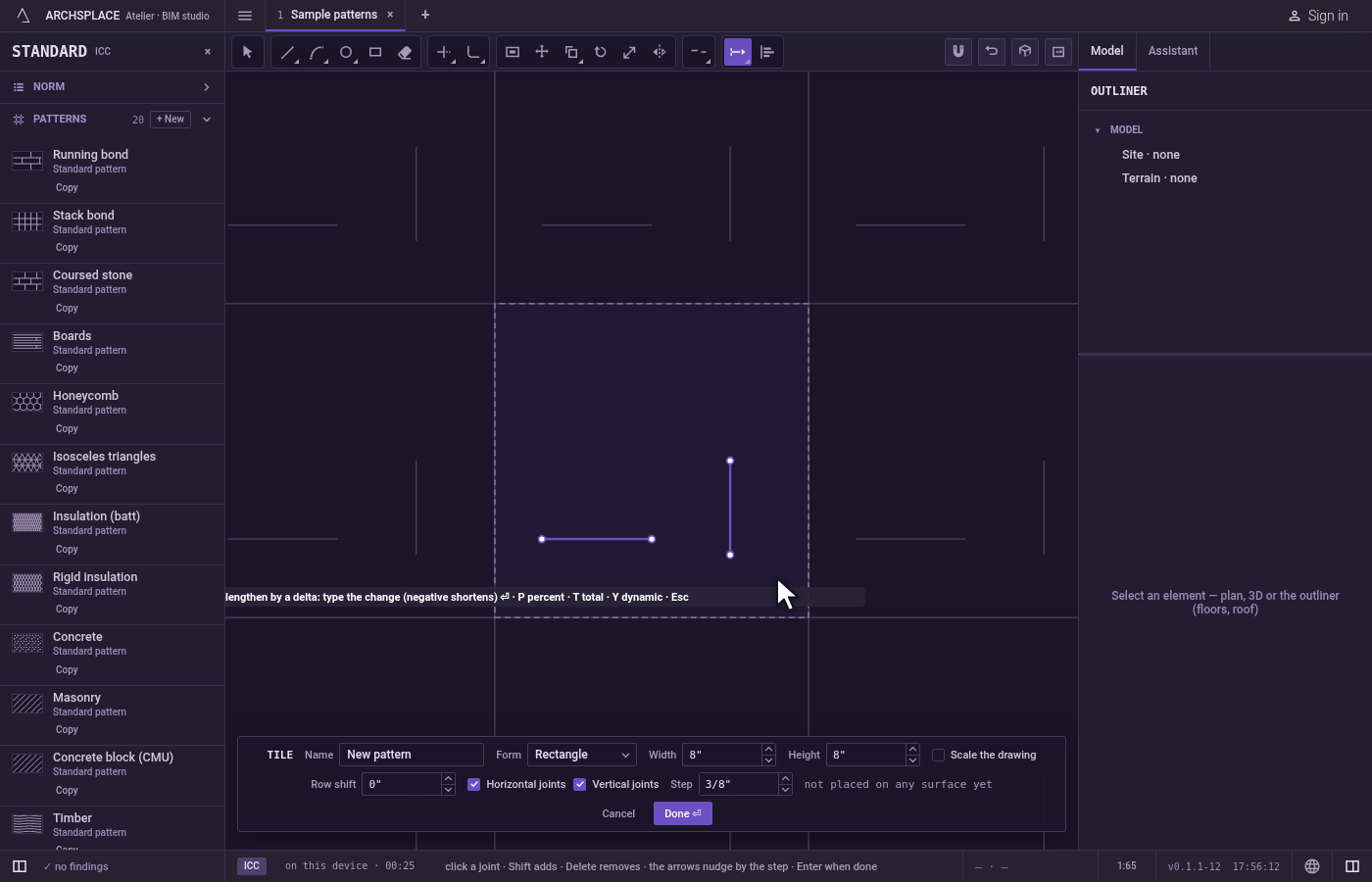
Choose the way. It starts in Delta. Press
Pfor Percent,Tfor Total, orYfor Dynamic, andDto go back to Delta.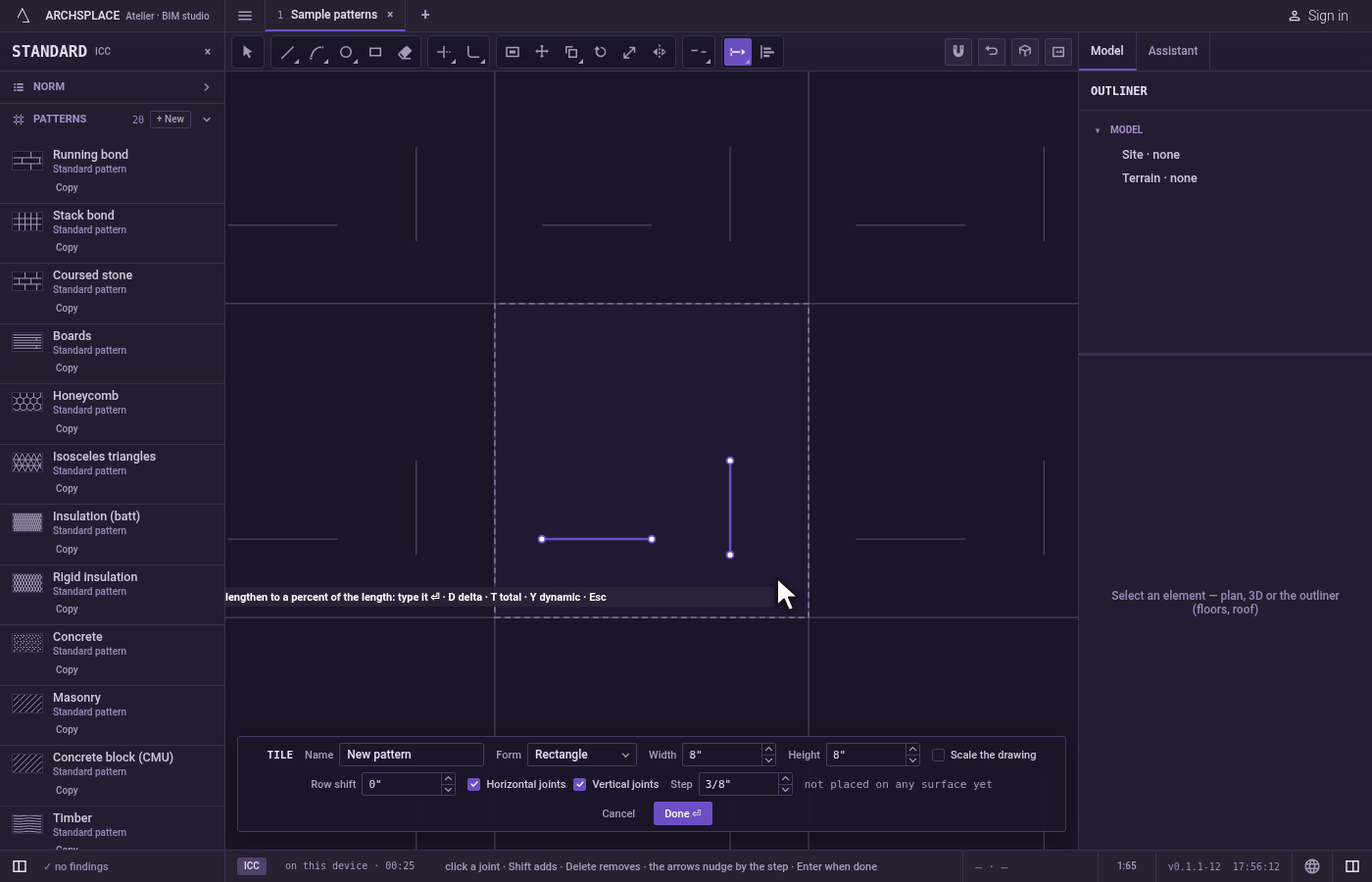
Type the value. In Delta, Percent or Total, type the value and press
Enter. The hint then shows the way and the value it holds.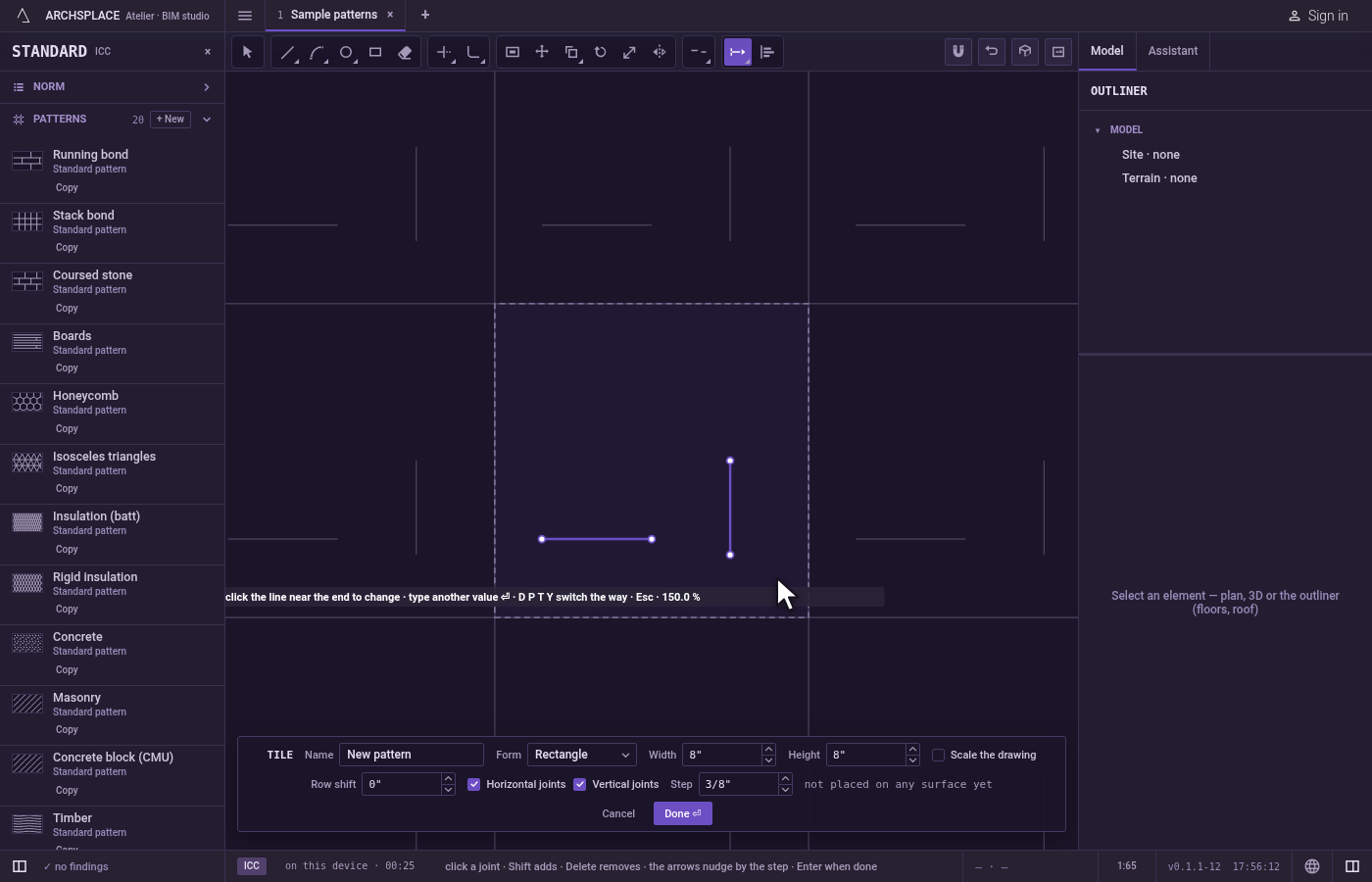
Click the joint near the end to change. The end nearest your click moves, and the joint is changed at once. The value stays, so you can click more joints with the same change, or type another value.
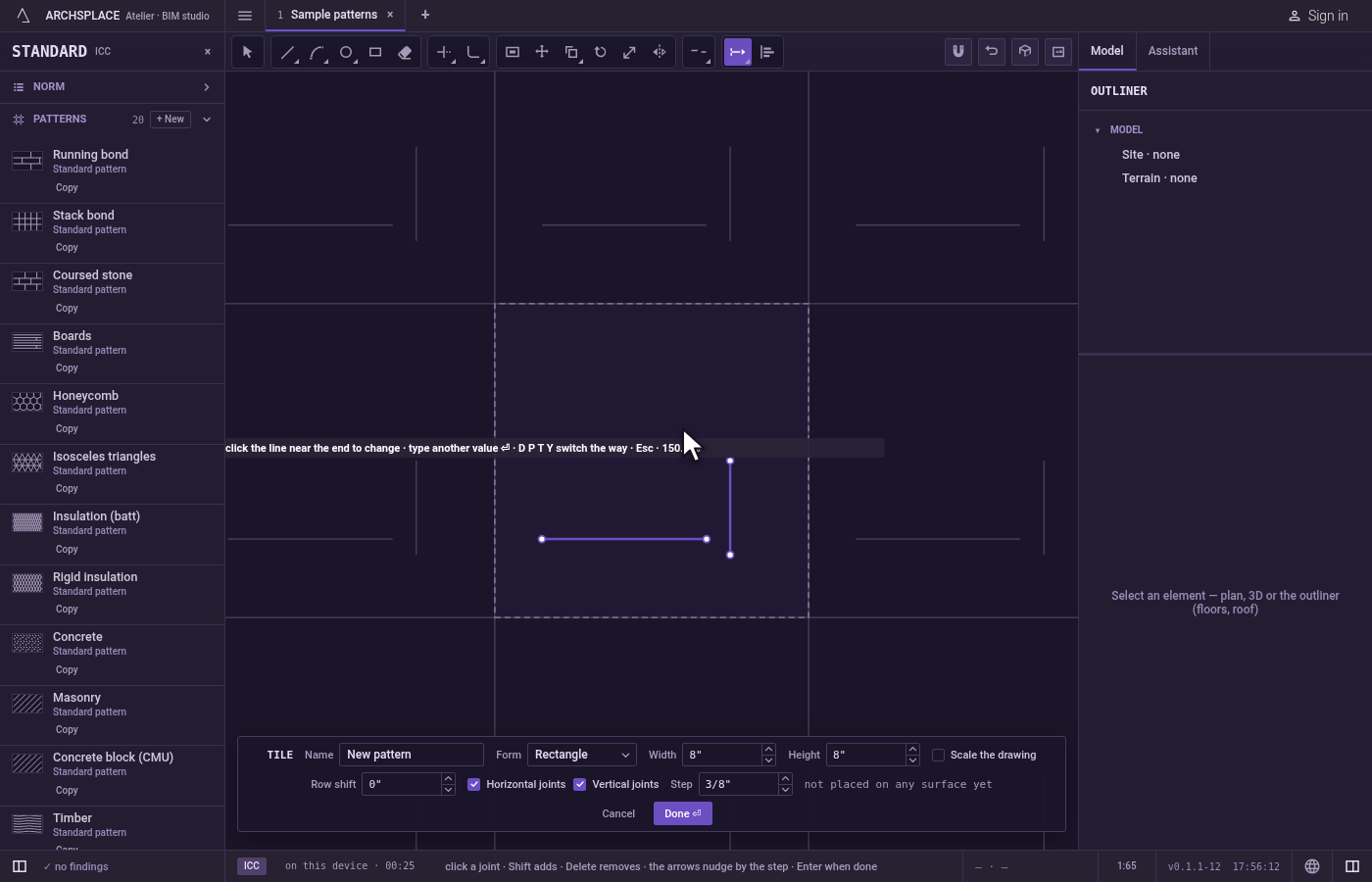
Or drag the end, in Dynamic. Click the joint near the end to move, then click where that end should go. The end follows the pointer along the joint's own line or arc.
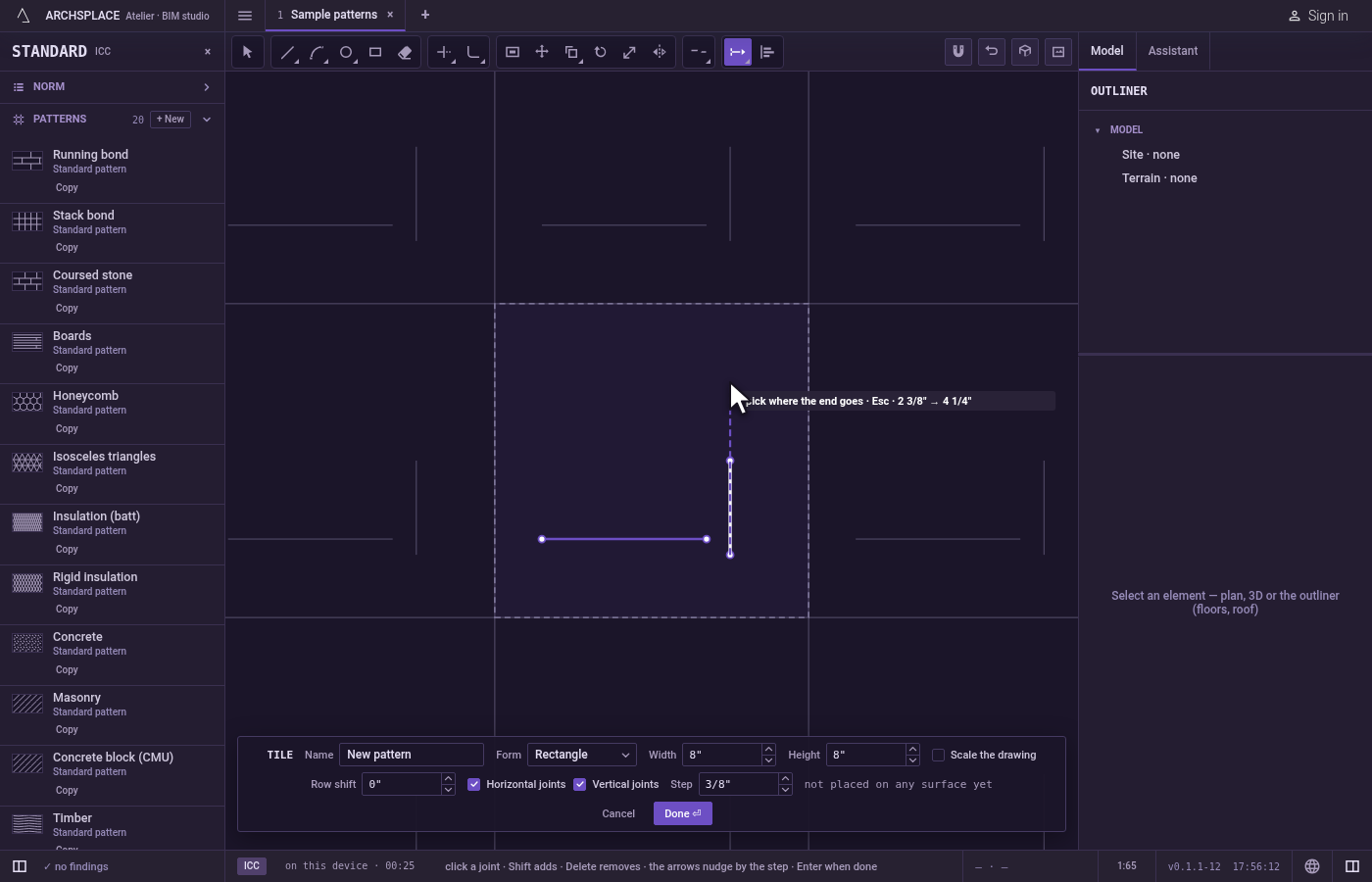
Finish.
Escapedrops a joint picked in Dynamic, then leaves Lengthen for Select.Ctrl+Zundoes the last change. Press Done on the bar at the foot to hand the tile back.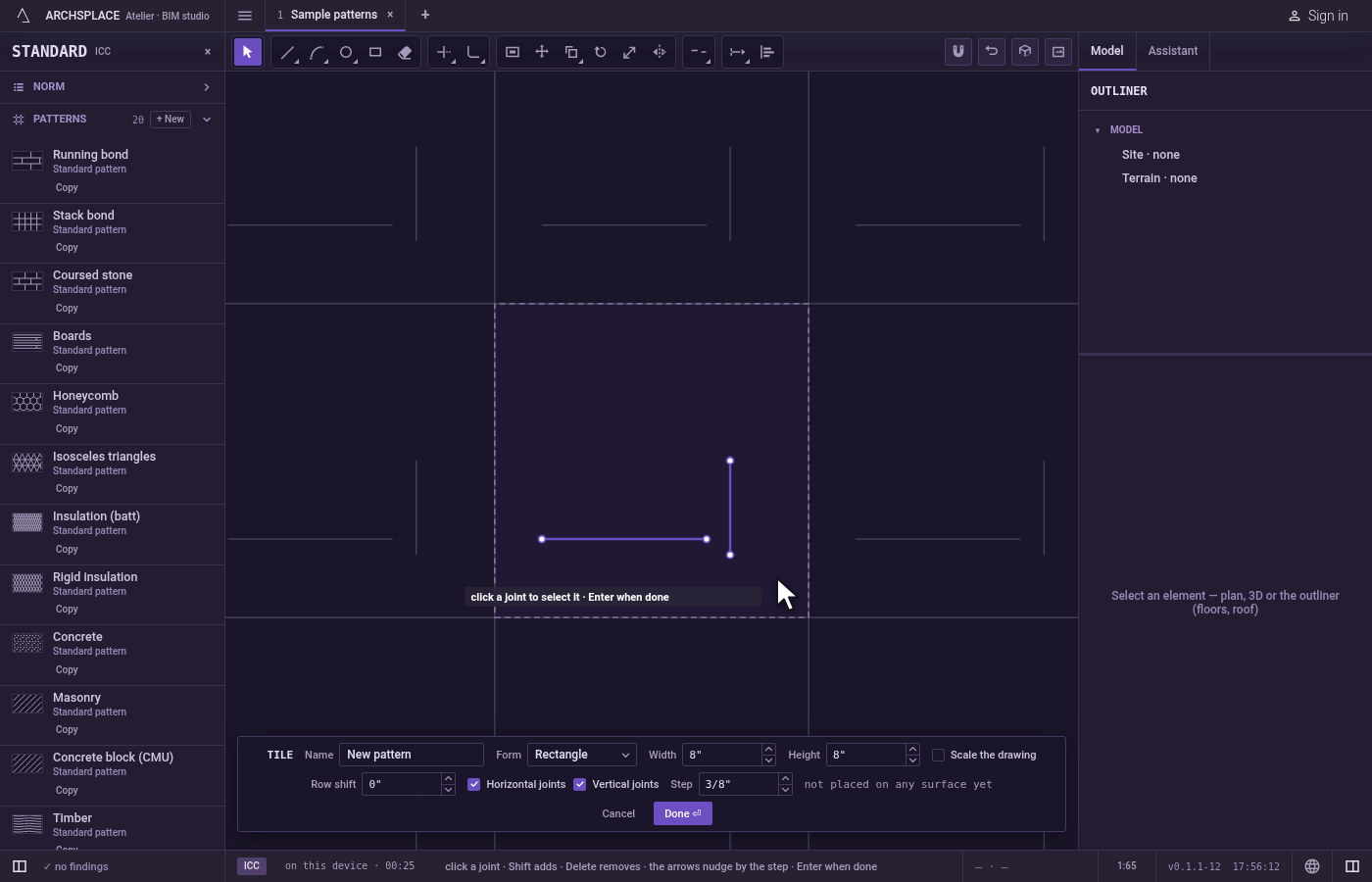
What it refuses
- A click before a value. In Delta, Percent or Total, clicking a joint before typing a value changes nothing, and the hint asks for the value.
- A closed joint. A circle, a rectangle or a closed polyline has no end to move: nothing changes, and the hint gives the words of the next refusal.
- A length that leaves nothing. A change that would bring the end segment to nothing or less, or turn an arc past a full circle, is refused with that length would leave nothing.
- A click on nothing. The hint says nothing under the pointer.
- A result that leaves the tile. If the changed joint would no longer stand inside the tile, the editor refuses it with a shape must stay inside the module. A straight joint that would cross the edge is cut there.
What it writes to the contract
Nothing while you work: the change stays in the tile editor, where Ctrl+Z steps back through it. When you press Done, the whole tile is written to the project's patterns in one step you can undo, every joint as its points in metres from the tile's lower-left corner, the lengthened joint with its moved end. A standard pattern is never changed: Done saves the project's own version of it under the same name, and every surface that lays it follows. Save as new writes a new pattern instead. Cancel writes nothing.
Related
Common questions
How do I make a joint exactly 30 cm long?
Take Lengthen, press T for total, type 0.3 (with the project in metres) and press Enter, then click the joint near the end that should move.
How do I shorten a joint by a set amount?
In the default delta way, type a negative value, for example -0.05, press Enter, then click the joint near the end to shorten.
Does Lengthen work on a rectangle or a circle?
No. A closed joint has no end to move. Explode a rectangle first to lengthen one of its sides.