SketchSin the studio
Stretch
Stretch moves only the corners that lie inside a window you drag in the sketch editor, and the lines leaving those corners follow, so a shape grows or shrinks on one side. The move is set by a base point and a target, or by a typed distance.
What it is
Stretch moves some corners of your drawing and leaves the others where they are. You choose the corners by dragging a window over them; every corner inside the window moves, and every line leaving such a corner follows it, so the shape grows or shrinks on that side. A line with both ends inside moves whole. An arc keeps its bulge, so its curve changes with the ends that move.
Stretch does not use the selection. The window you drag decides what moves.
When to use it
- Making a window or a door taller, wider or narrower on one side only.
- Pushing one side of a pattern area out to a new line.
The steps
Arm Stretch. In the sketch editor (see Select for the ways in), press
Sor click Stretch on the editor's toolbar. The hint at the cursor says to drag a crossing window over the ends to move, and that the rest follows.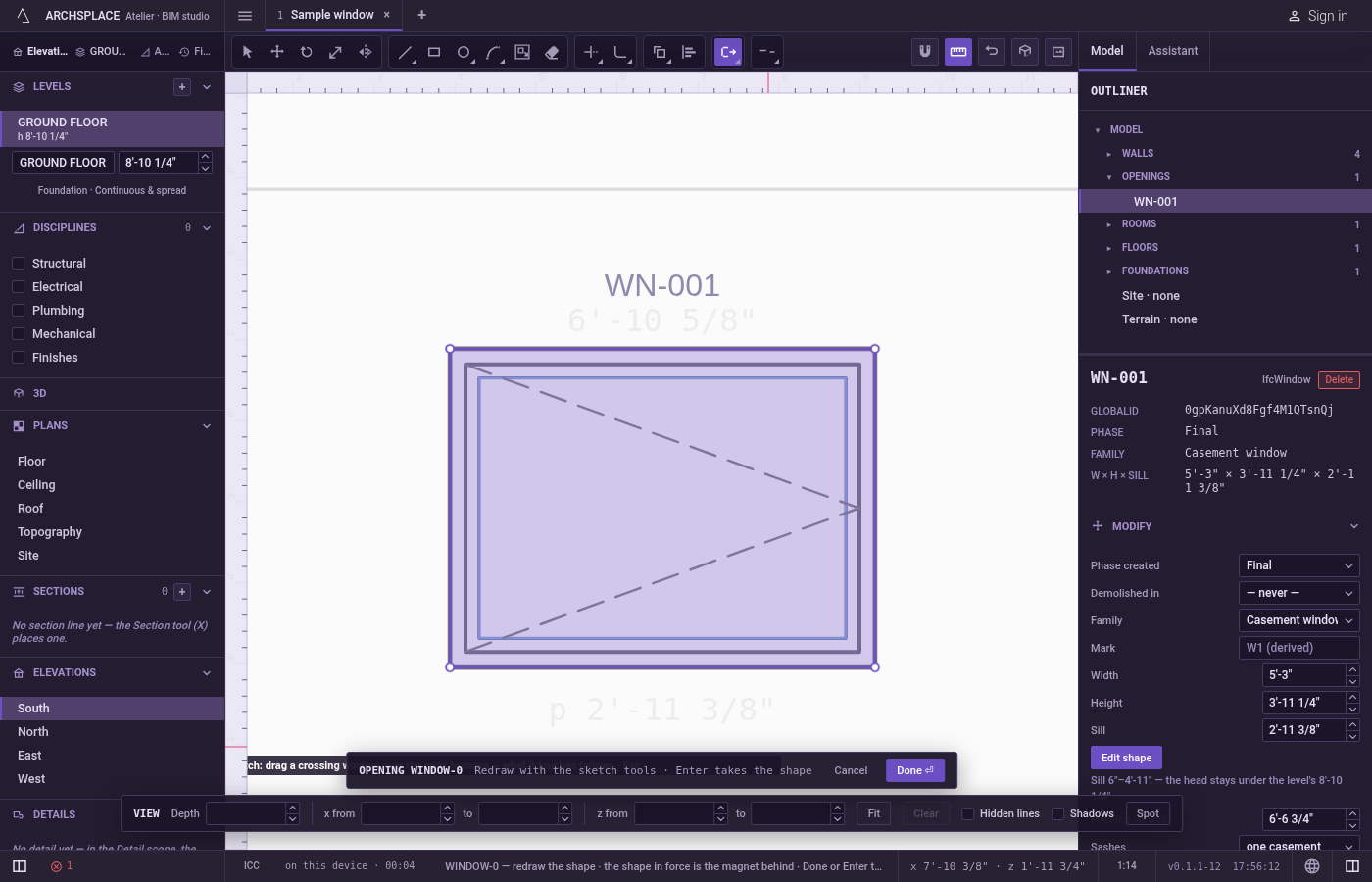
Drag a window over the corners to move. Press beside them, drag a box around them in either direction, and release. The lines that have a corner inside are lit. A simple click repeats the instruction.
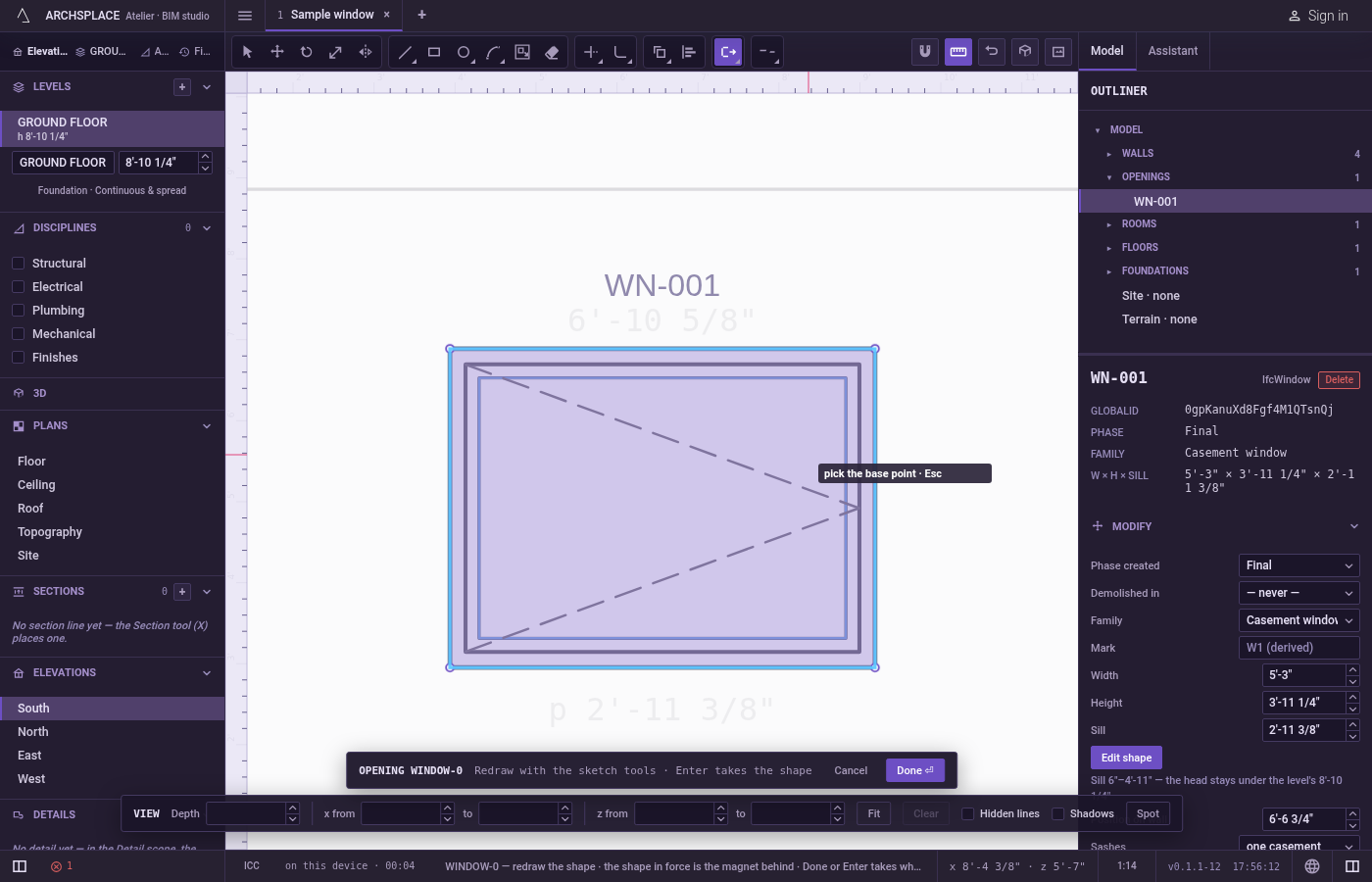
Click the base point. It snaps to corners, middles, crossings, the dimmed shape in force and the lines of the view, and you can type it as
x;y.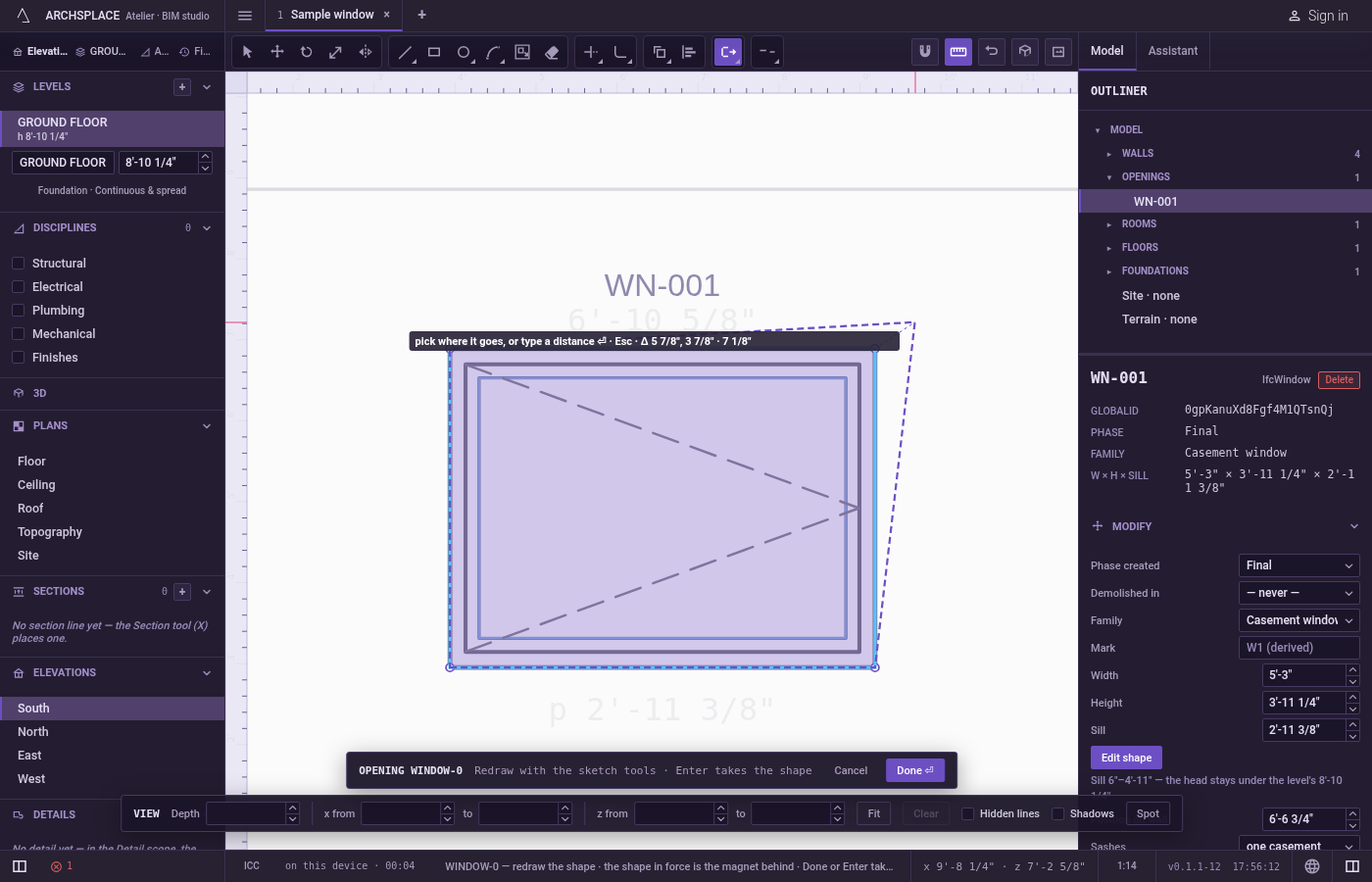
Click the target, or type the distance. A preview of the stretched lines follows the pointer, and the hint shows the step across, the step up and the distance. Click to stretch. For an exact move, point in the direction you want, type the distance in the project's units and press
Enter.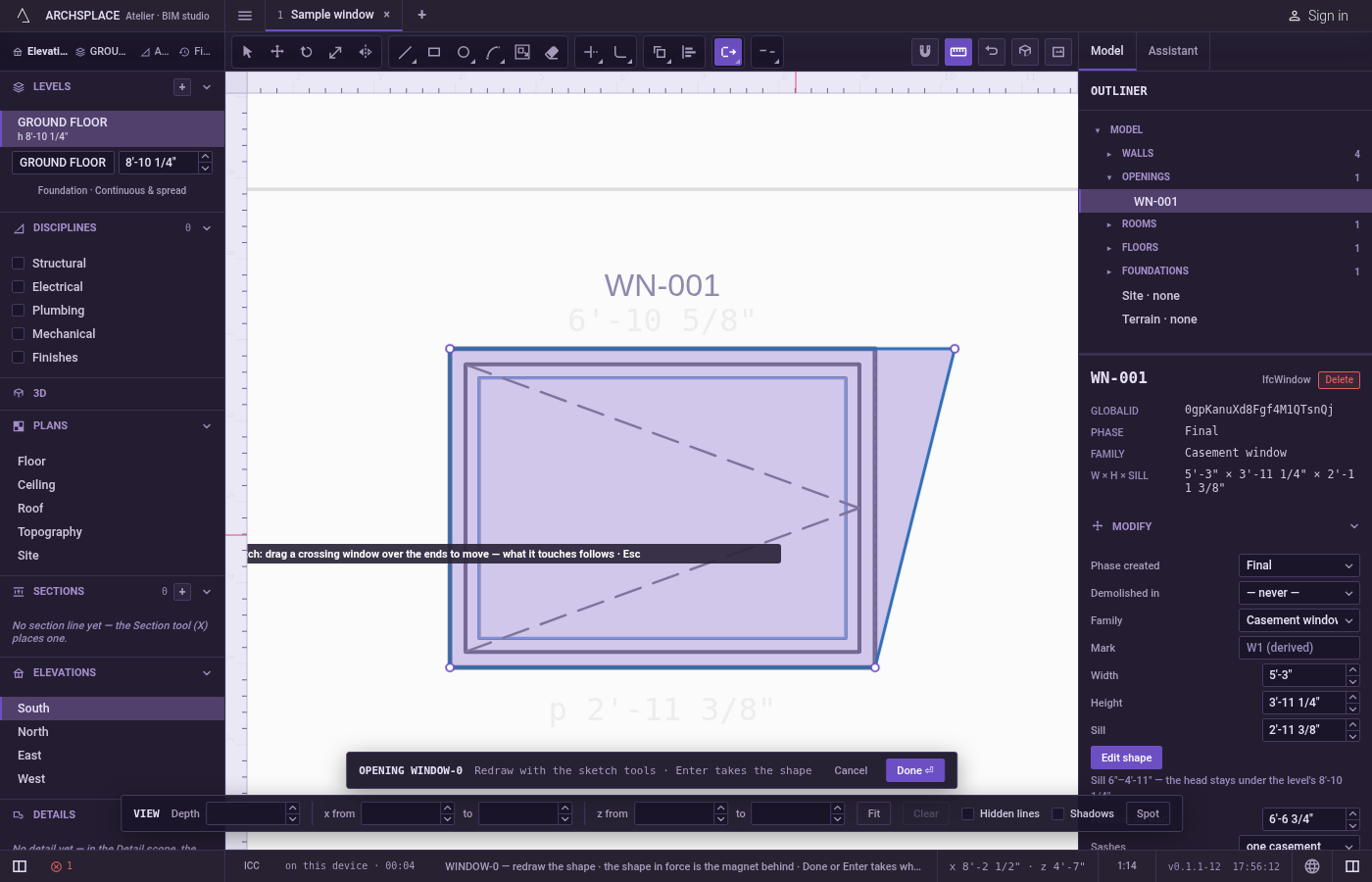
Carry on. The corners land, the stretched lines are left selected, and Stretch waits for a new window.
Escapesteps back: the base point, then the window, then back to Select.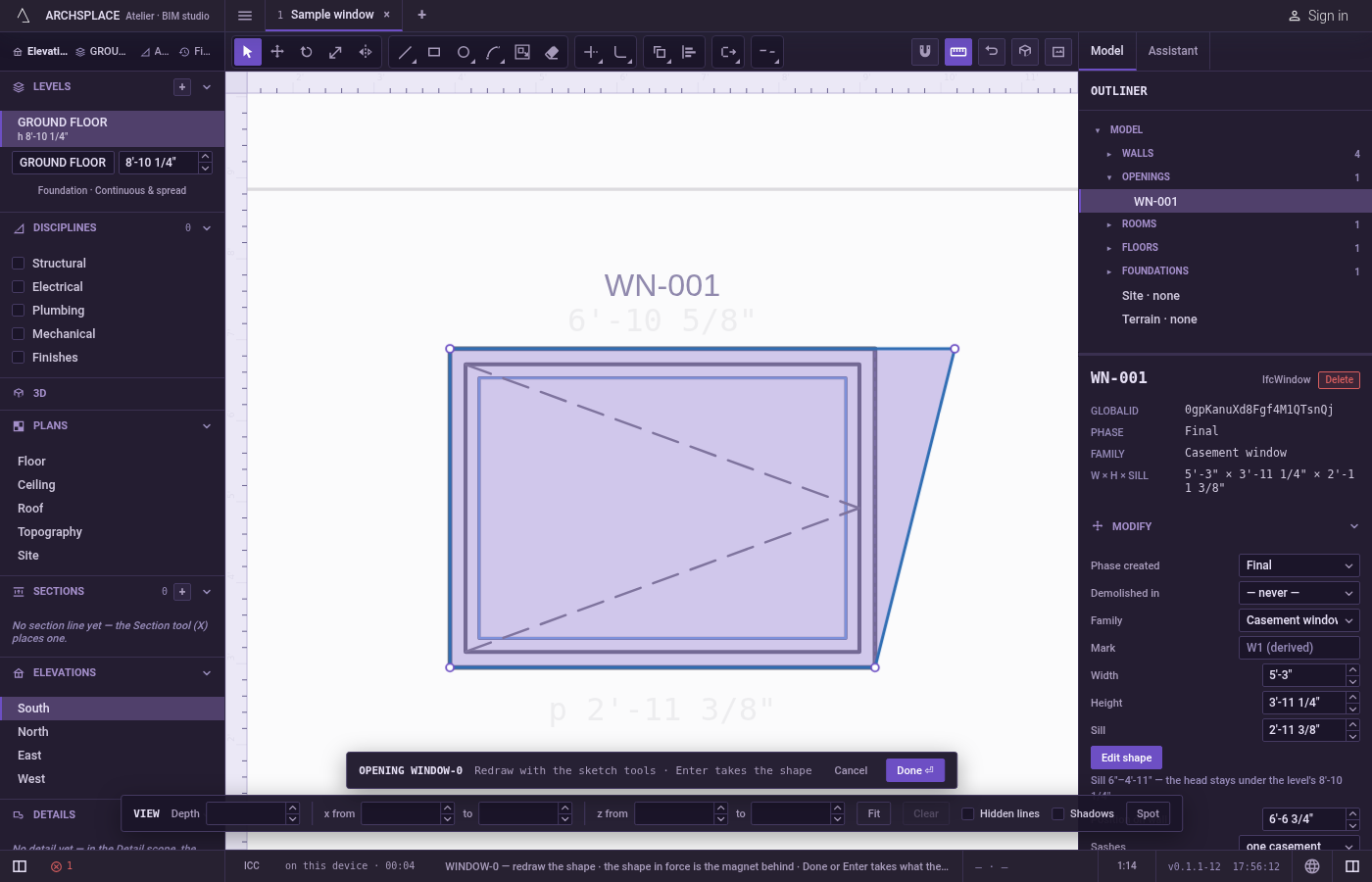
What it refuses
- A window with no corner inside. The hint says the window holds no end to stretch, and the tool waits for another window. A window that crosses the middle of a line without holding one of its corners moves nothing.
- A move of nothing. A target on the base point, or a typed
0, changes nothing, and the hint says the same. - A distance typed before the base point. A bare number typed then does nothing; only a point typed as
x;ysets the base. - The shape in force. The dimmed shape behind your drawing never stretches.
What it writes to the contract
Nothing until you press Done. Each stretch is one step inside the editor, and Ctrl+Z steps back through them. The contract changes when you press Done, or Enter with nothing in progress, as one step you can undo: what the lines enclose becomes the window's or door's profile, points [u, v] in meters across the wall and up from the floor, or the pattern area's outline in the room's floorAreas or ceilingAreas, points [x, y] in plan meters.
A window 1.2 meters tall stretched 20 centimeters upward, its top corners inside the window:
Common questions
How do I make a window shape 20 centimeters taller without changing its width?
Press S, drag a window around the top corners only, click a base point, point straight up, type 0.2 and press Enter. The top moves up and the sides lengthen.
What happens to an arch when I stretch one end of it?
It stays an arc with the same bulge, so its shape changes with the end that moved. Stretch both ends to move the arch unchanged.
Do I need to select anything first?
No. Stretch ignores the selection: the window you drag decides which corners move.