SketchRin the studio
Rectangle in the tile editor
Rectangle draws a closed rectangular joint inside a pattern's tile from two opposite corners, clicked, dragged or typed as a width and a height. Its corners can be sharp, rounded or cut, and the rectangle is one joint that must stand whole inside the tile.
What it is
Rectangle draws a closed rectangle inside the tile: an inset, the outline of a smaller tile set in a larger one, a panel of a parquet. You give it two opposite corners. The tile's corners, the middles of its sides, its centre and its edges are magnets, and so are the ends, the middles and the length of the joints already drawn.
A rectangle is one joint. It is selected, nudged, erased and undone whole. Its corners can be sharp, rounded with a radius, or cut at a distance. To work on one side alone, Explode turns it into four separate joints.
When to use it
- To draw an inset or a frame inside the tile.
- To draw a smaller tile set into a larger one, with sharp, rounded or cut corners.
- When you know the width and the height of the shape.
The steps
Take the tool. Press
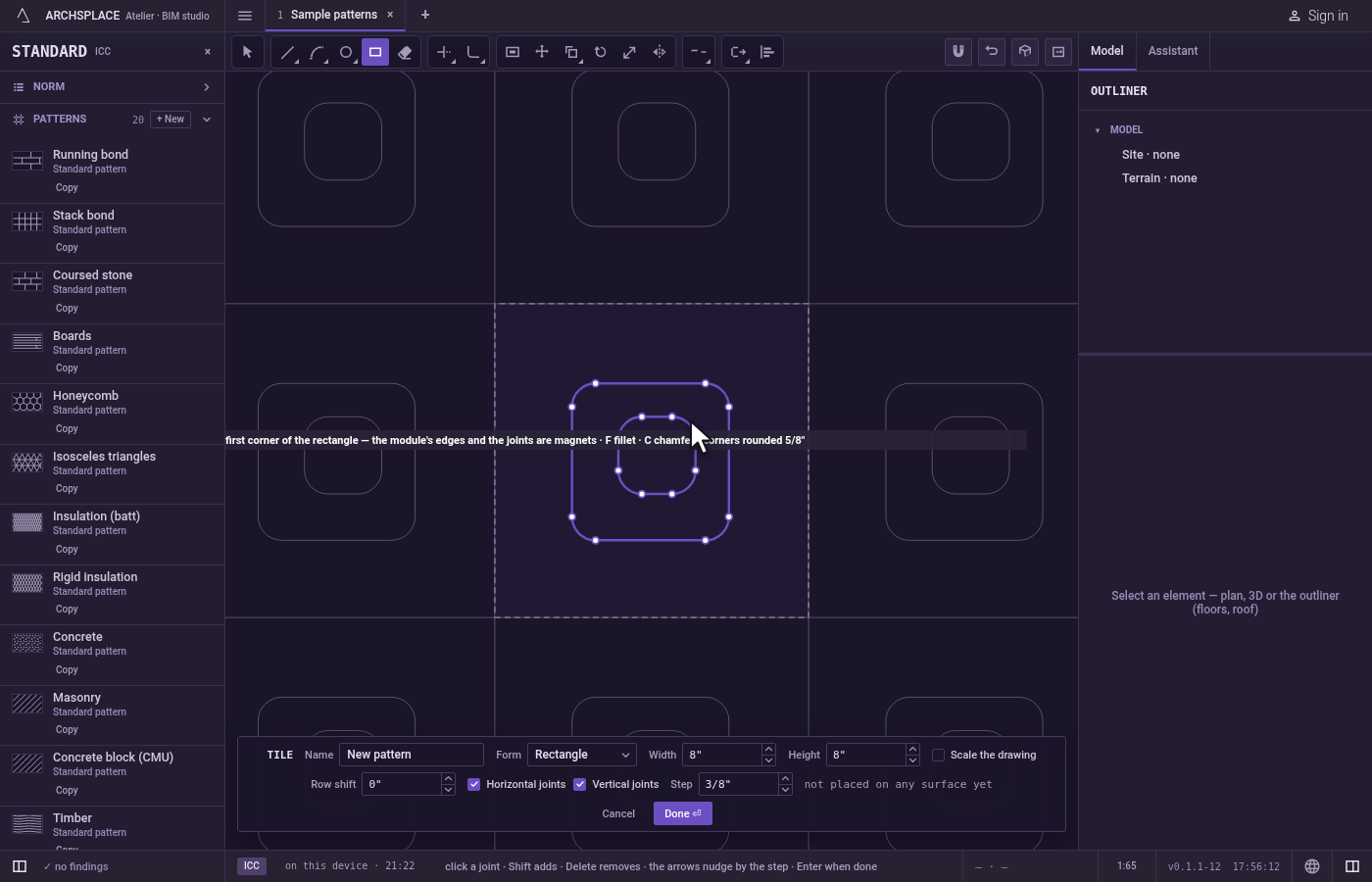
R(or typeREC), or click Rectangle on the bar. The hint at the pointer asks for the first corner, and reminds you thatFrounds the corners andCcuts them.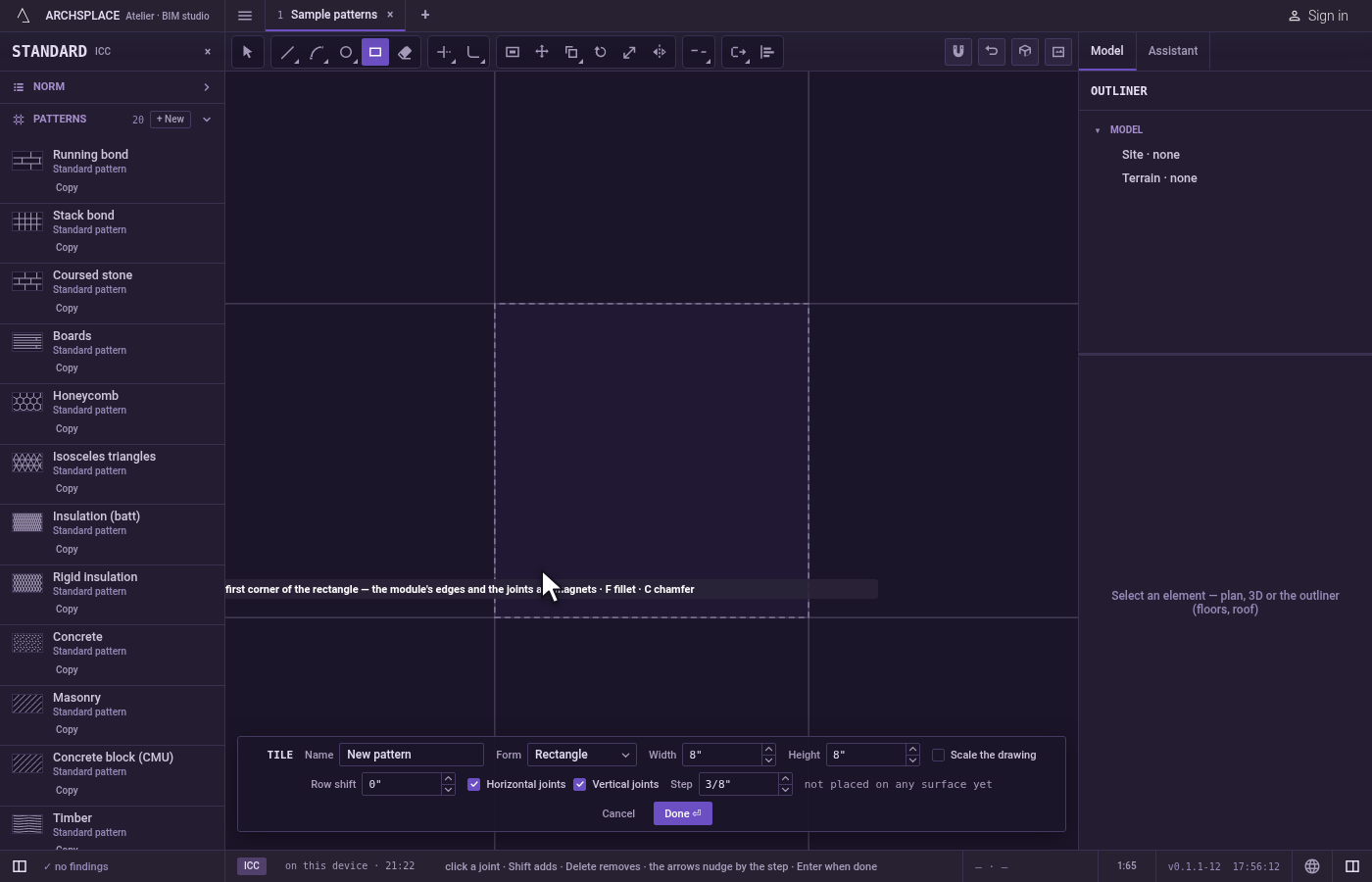
Choose the corners, if you want them other than sharp. Press
F, type the radius and pressEnterto round them, or pressC, type the distance and pressEnterto cut them. Type0to go back to sharp corners. You can do this before the first corner or after it. The hint then shows corners rounded or corners cut with the size, and the choice stays for every rectangle you draw while the editor is open, until you change it. A size larger than half the rectangle's shorter side is held to that half.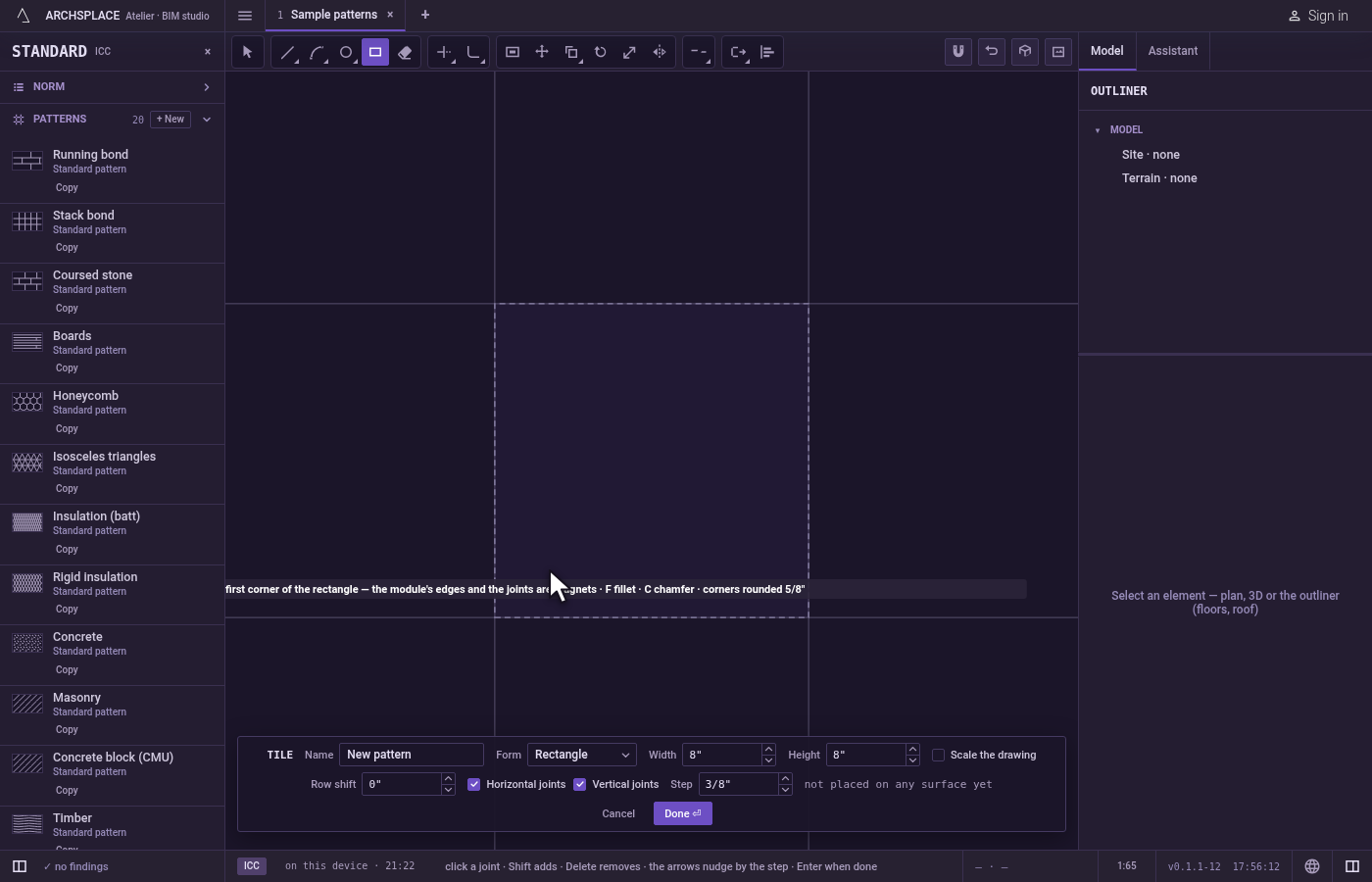
Place the first corner. Click inside the tile, or type
x;yand pressEnter, measured from the tile's lower-left corner.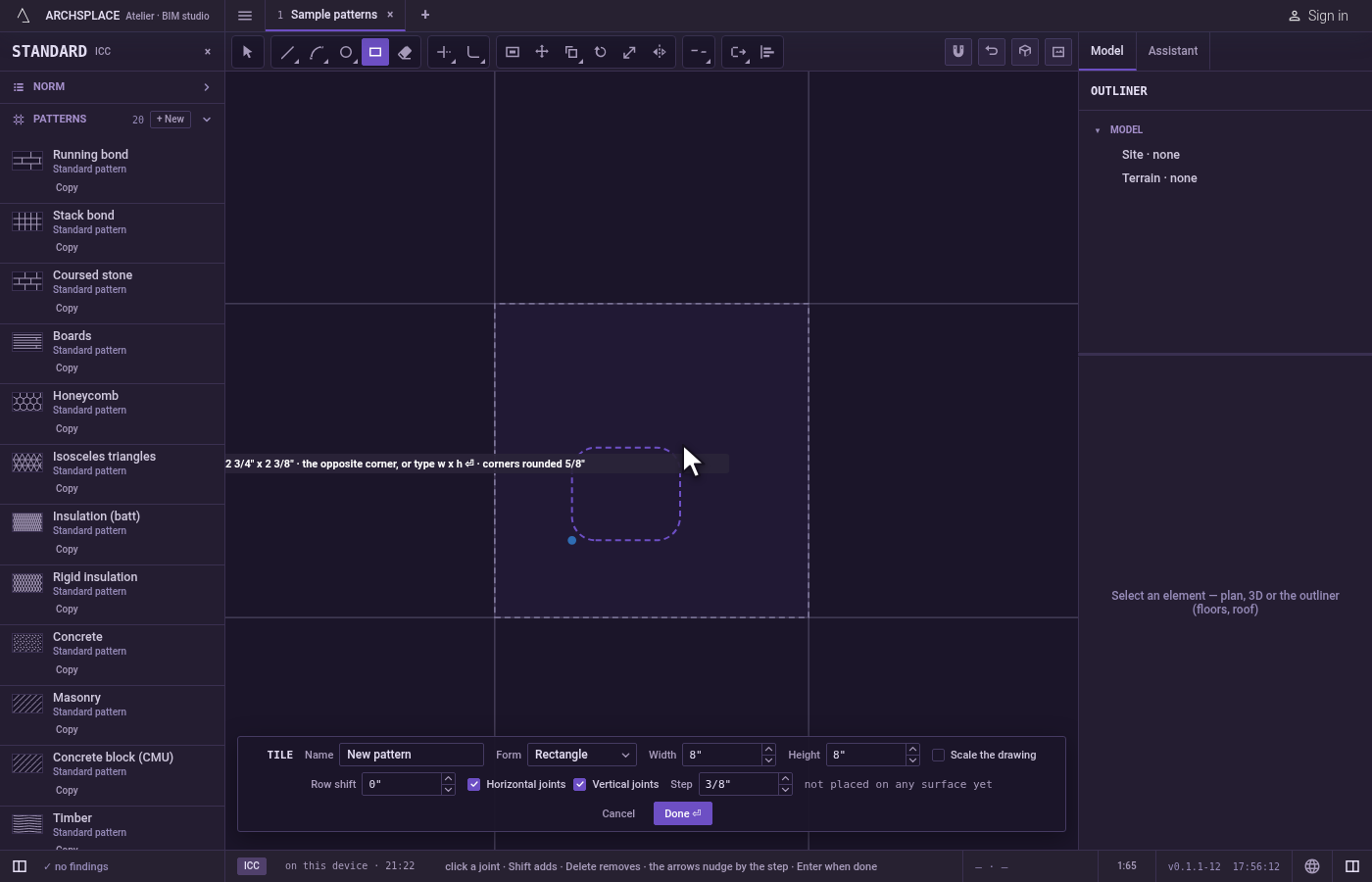
Place the opposite corner. A ghost rectangle follows the pointer, and the hint shows its width and its height. Click the opposite corner, or press on the first corner and drag. To be exact, type the width and the height as
w x hand pressEnter: the rectangle grows from the first corner toward the side the pointer is on. One value alone draws a square. If the ghost turns red, the click would be refused.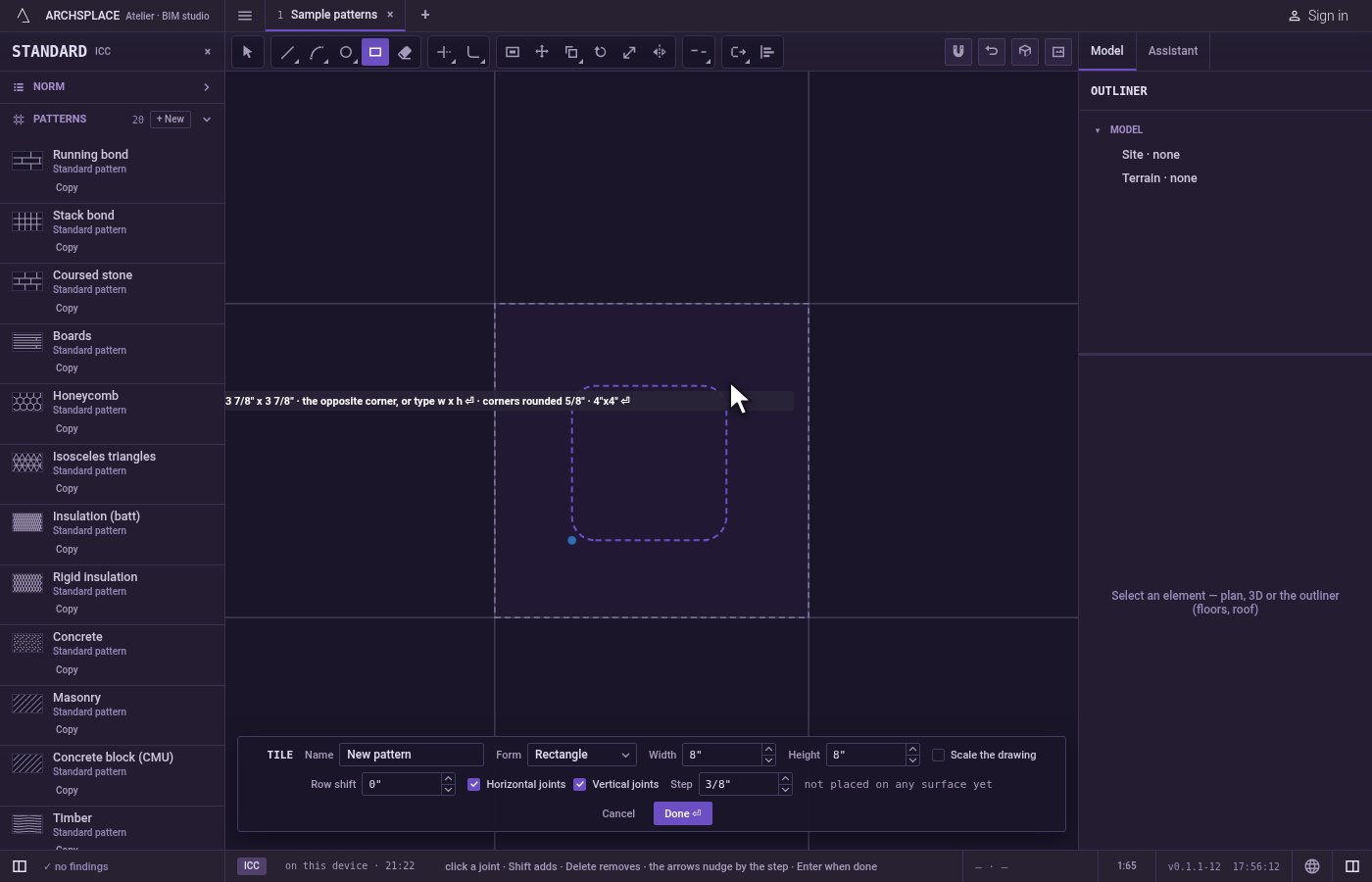
Draw the next one. The rectangle stands and the tool waits for a new first corner.
Step back or change your mind.
Escapeclears what you typed, then drops the first corner.Ctrl+Zundoes the last rectangle.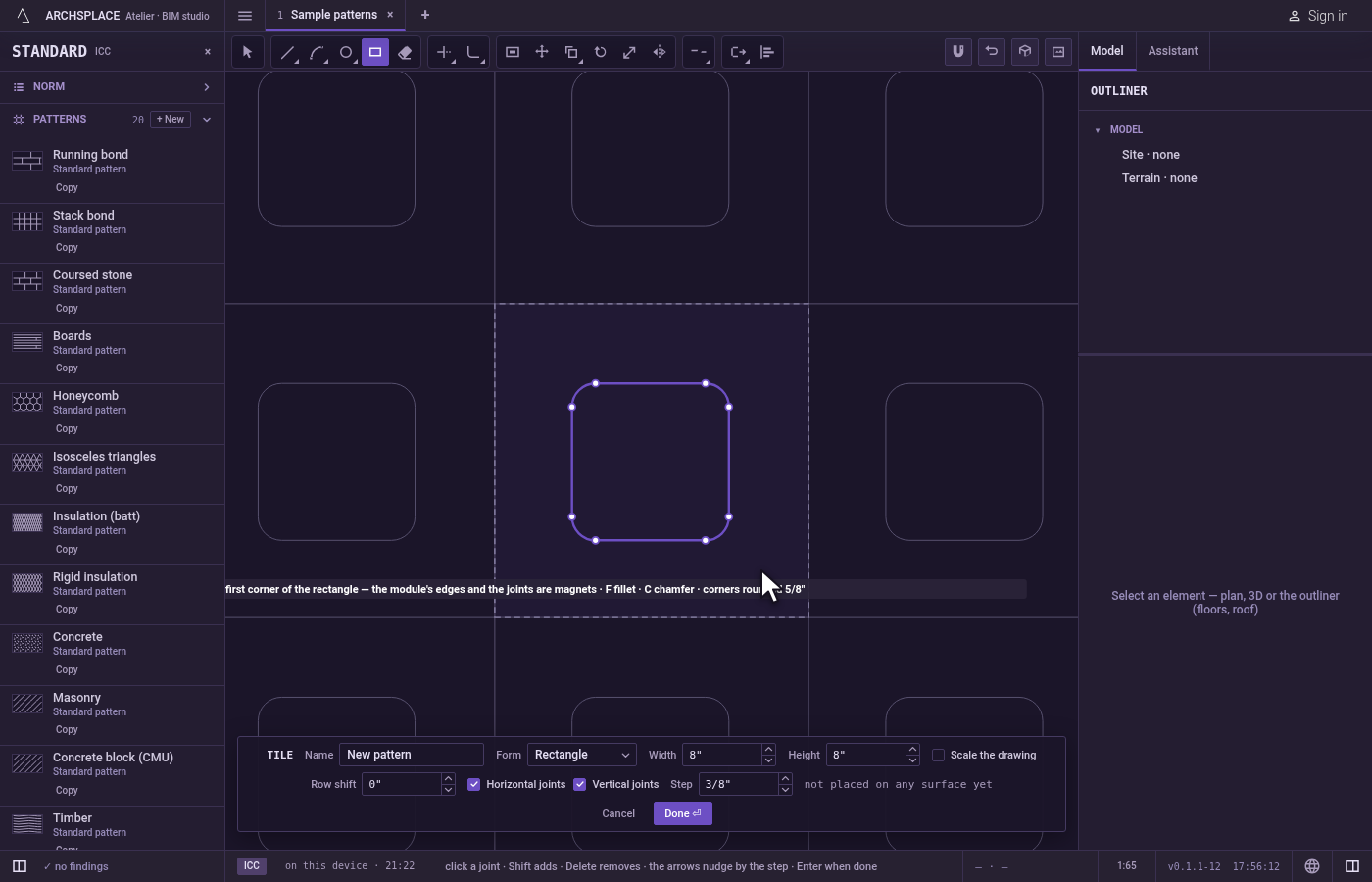
Hand the tile back. Press Done on the bar at the foot, or
Enterwith nothing in hand.Escapewith nothing in hand and nothing selected closes the editor without writing anything.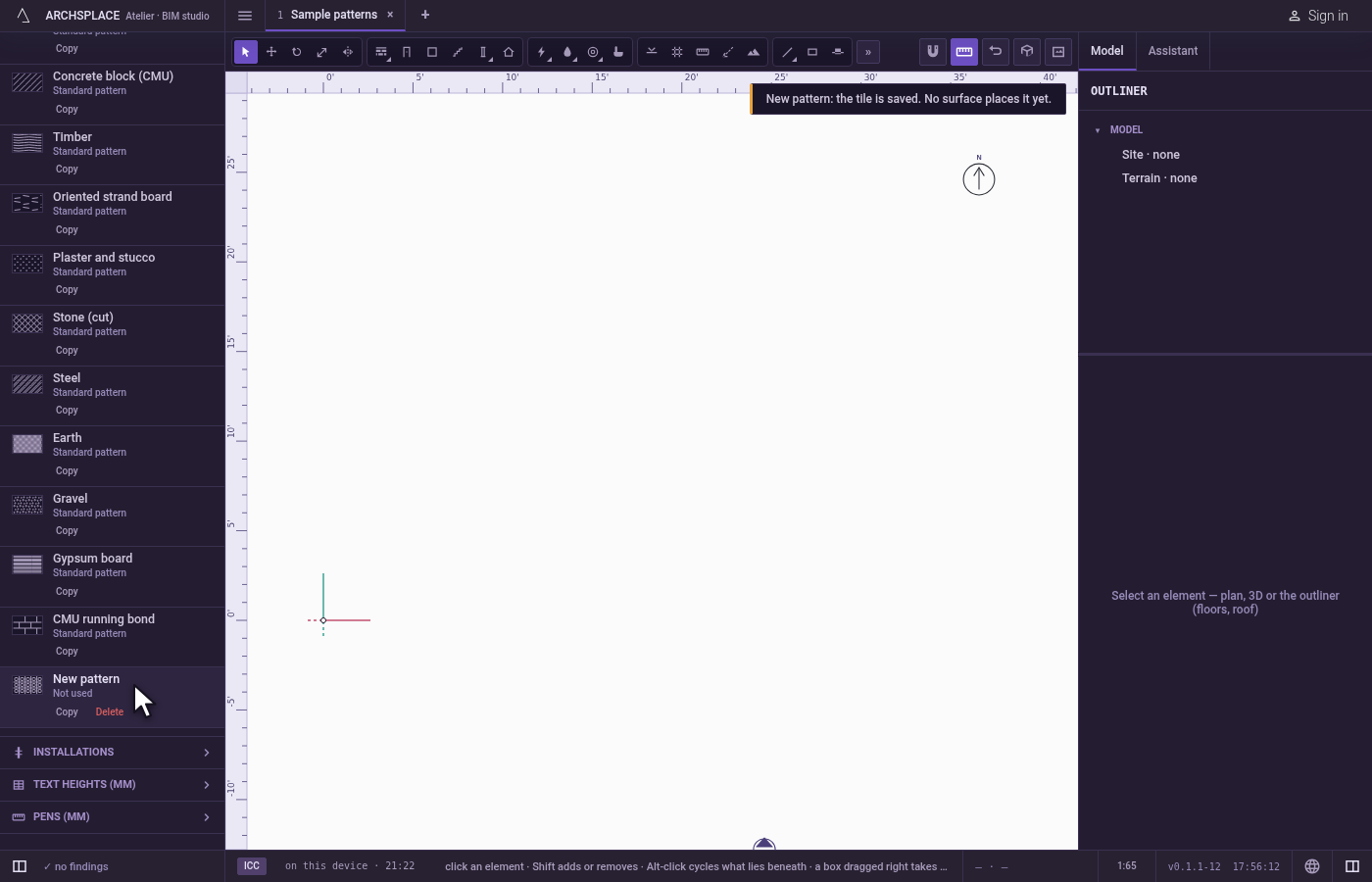
What it refuses
- A rectangle that leaves the tile. If any part of it would stand outside the tile, nothing is drawn and the editor says a shape must stay inside the module. Your first corner stays in hand.
- A rectangle with no width or no height. Two corners on one line draw nothing and are refused with a joint under 1 mm is refused.
- A corner size that is not a number. It is refused in words, and the corners stay as they were.
- The keys F and C for other tools. While Rectangle is in hand they ask for the corners, so they do not open Fillet, Circle or Copy. Click those tools on the bar, or press
Vfirst.
What it writes to the contract
Nothing while you draw: the rectangle stays in the tile editor, where Ctrl+Z takes it back. When you press Done, the whole tile is written to the project's patterns in one step you can undo. A rectangle is stored as one closed joint: its four corners, or eight points with the curve or the cut between them when its corners are rounded or cut, in metres from the tile's lower-left corner. A standard pattern is never changed: Done saves the project's own version of it under the same name, and every surface that lays it follows. Save as new writes a new pattern instead. Cancel writes nothing.
Related
Common questions
How do I draw a rectangle of an exact size?
Click its first corner, point toward where it should grow, type its width and height as w x h, for example 0.2x0.1, and press Enter. One value alone draws a square.
How do I round the corners of a rectangle?
With the Rectangle tool in hand, press F, type the radius and press Enter. Press C instead to cut the corners at a distance. Type 0 to go back to sharp corners. The choice stays for the next rectangles.
Why can I not switch to Circle or Fillet with their keys while drawing rectangles?
While Rectangle is in hand, F and C belong to it: they ask for the rounded or cut corners. Click the other tool on the bar, or press V first and then its key.