SketchXin the studio
Explode
Explode splits the selected rectangles, outlines and chains of the sketch editor into their separate segments, each one a line of its own with its two ends. Arcs stay arcs, and nothing moves.
What it is
The tools of this group work on lines as you drew them: a rectangle is one closed line of four sides, a chain from Line or Polyline is one line of many. Explode breaks such a line into its segments, each a line of its own, in exactly the same place. A straight segment stays straight and an arc stays the same arc. A line that is already a single segment has nothing to split and is left as it is.
When to use it
- Before working on one side of a rectangle or an outline: extending it, lengthening it, copying it alone, or filleting it to another line.
- Before taking a single side of a chain away whole.
The steps
Choose what to explode. In the sketch editor (see Select for the ways in), select the outlines with Select. Selecting one side of a rectangle is enough to take the whole rectangle.
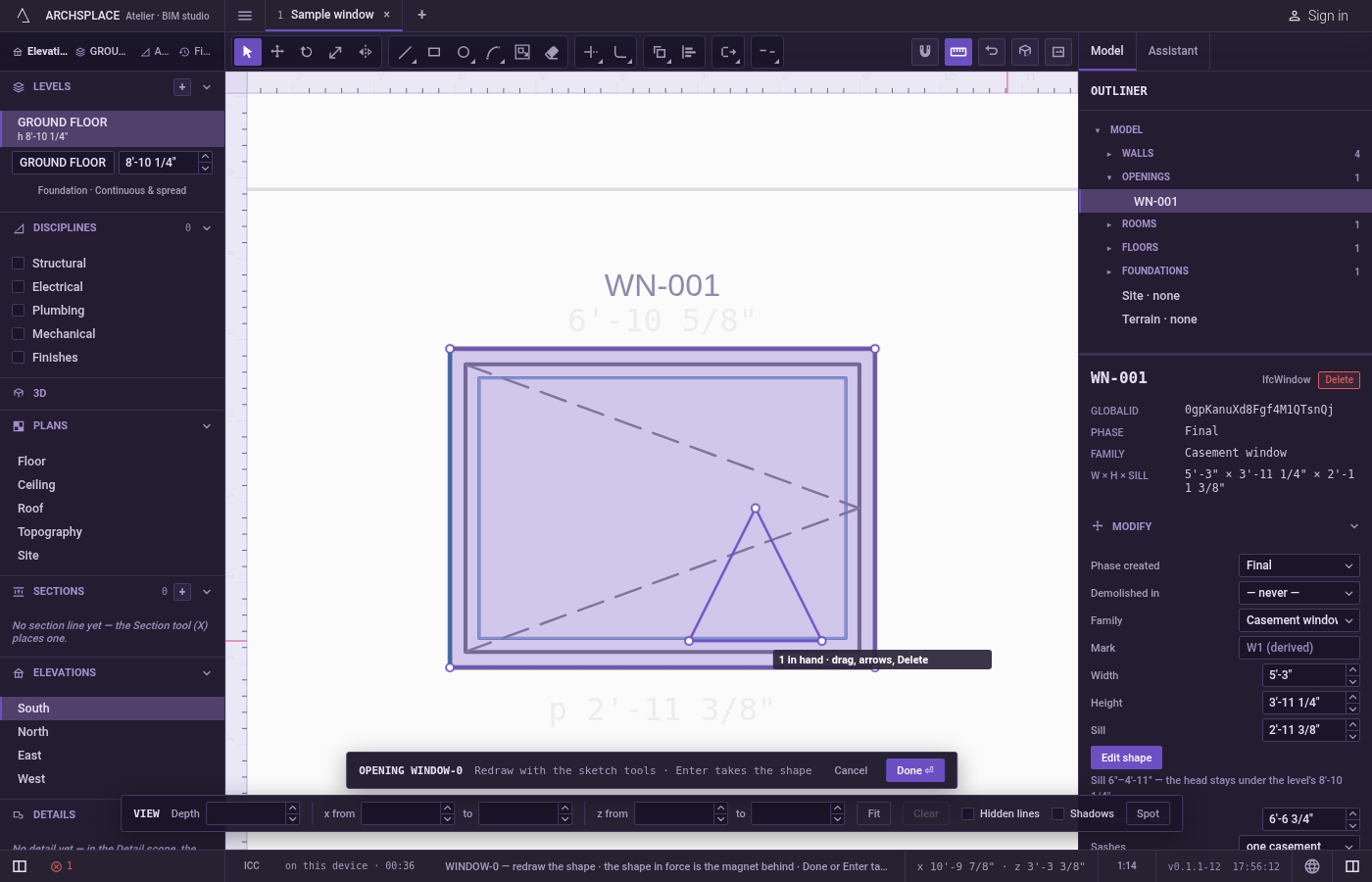
Arm Explode. Press
X, or click Explode on the editor's toolbar. With something selected, Explode acts at once: the hint says how many parts it made and how many lines were left whole. The parts are left selected.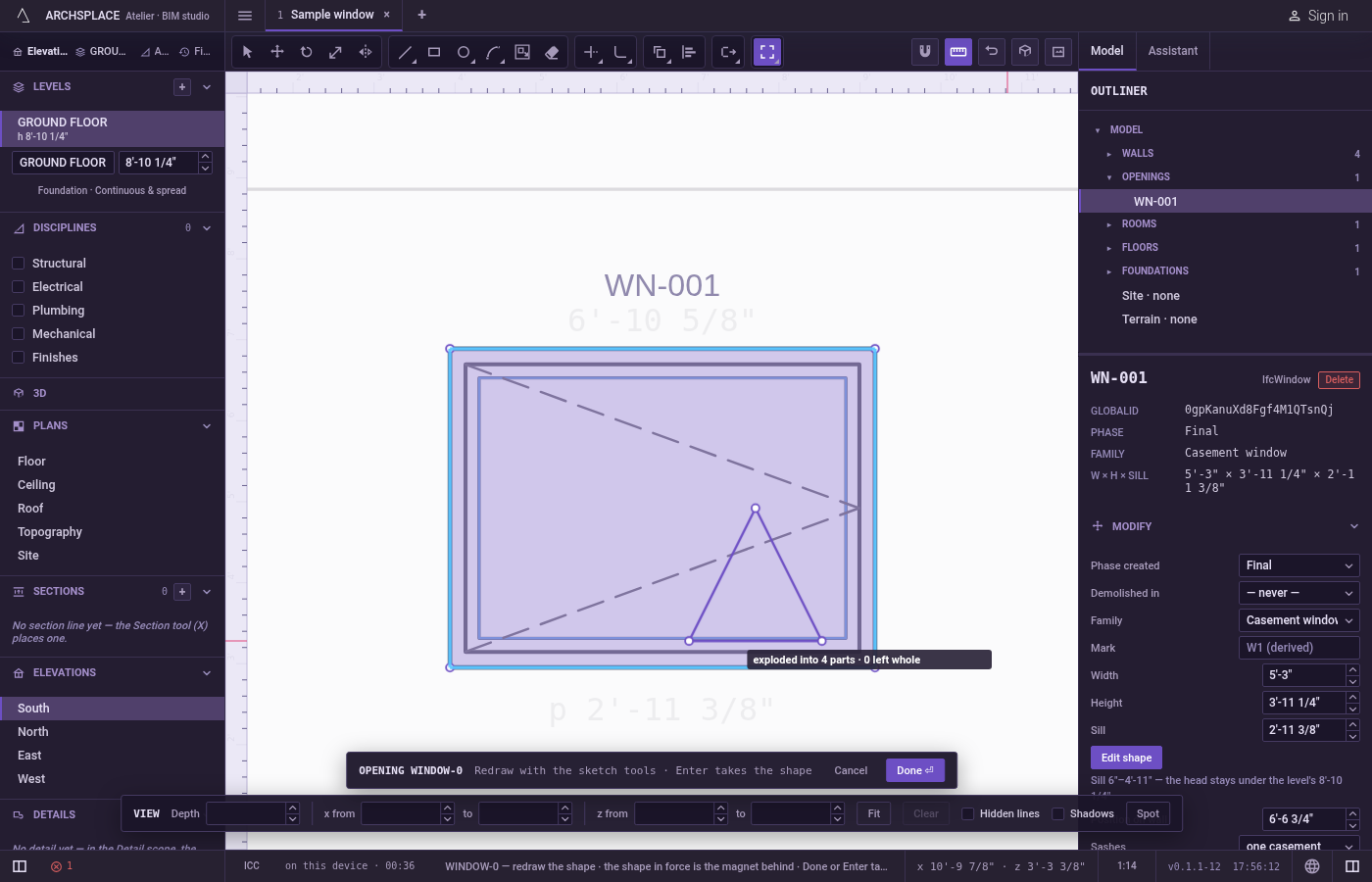
Or pick the lines after arming. With nothing selected, the hint asks you to select objects. Click lines to add them,
Shiftand a click to take one back out, drag a box to the right for the lines wholly inside or to the left for every line it touches, or pressFfor a fence. PressEnterto explode them.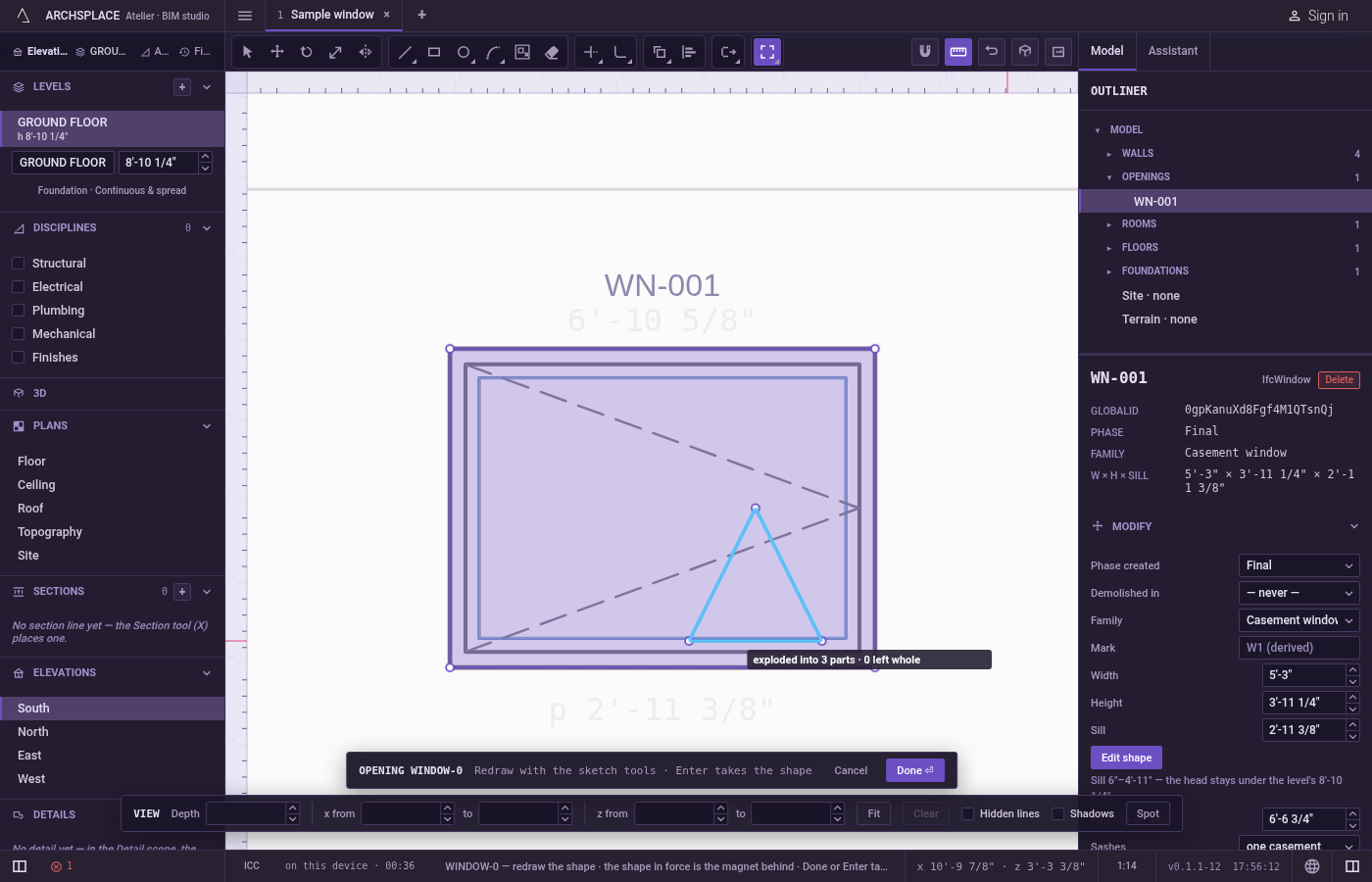
Carry on.
Escapegoes back to Select.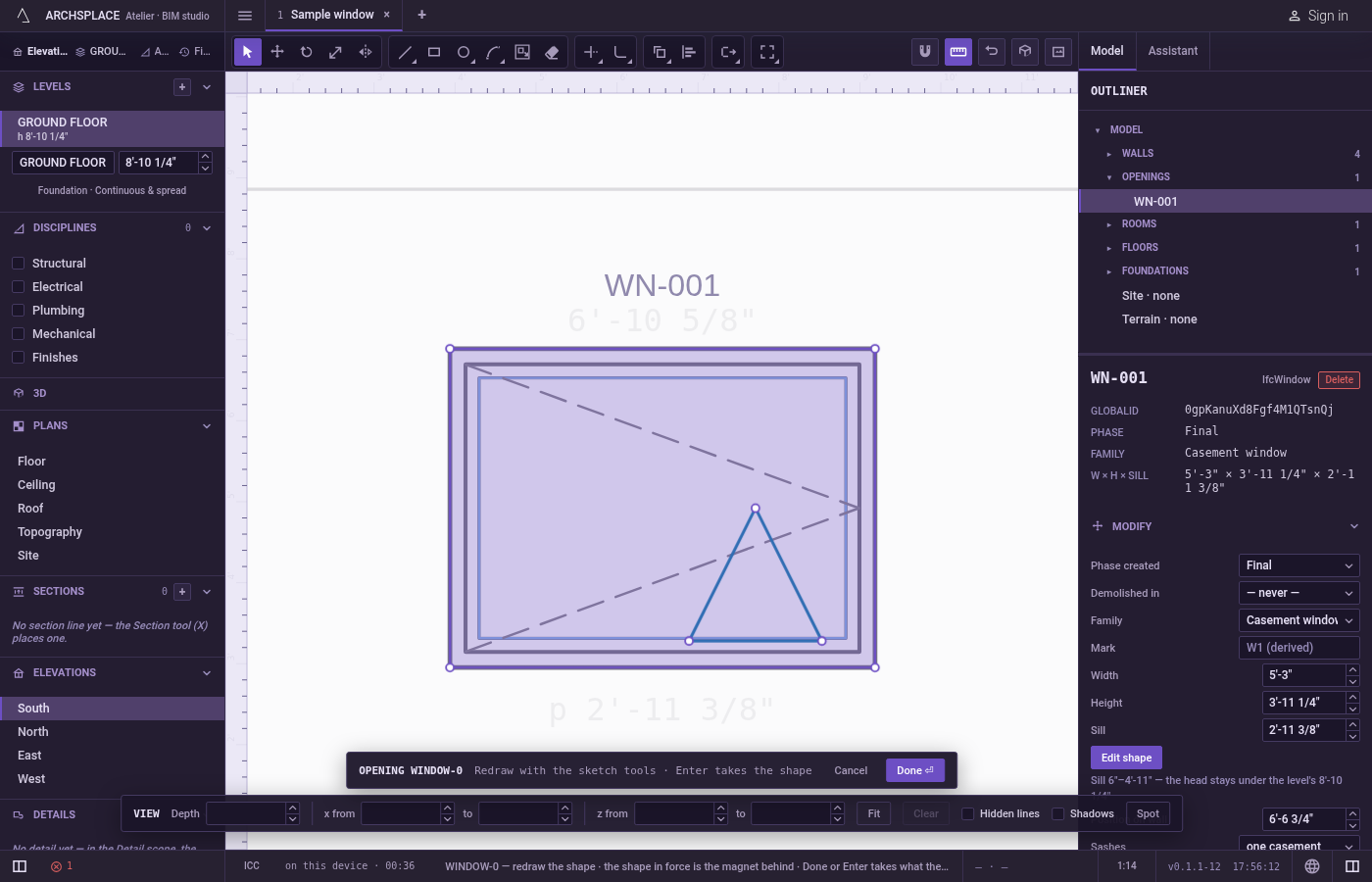
What it refuses
- A lone segment. A single straight line or a single arc has no parts. When nothing chosen can be split, the hint says there is nothing to explode.
- Circles of two halves. A circle drawn with Circle by 2 points or Circle by 3 points is left whole and counted. A circle drawn with Circle is four quarter arcs and does explode into them.
- Exploding with nothing picked.
Enterwith no line picked asks again to select objects.
What it writes to the contract
Nothing until you press Done. An explode is one step inside the editor, and Ctrl+Z takes it back. The contract changes when you press Done, or Enter with nothing in progress, as one step you can undo: what the lines enclose becomes the window's or door's profile, points [u, v] in meters across the wall and up from the floor, or the pattern area's outline in the room's floorAreas or ceilingAreas, points [x, y] in plan meters.
Exploding changes how the lines are kept in the editor, not the area they enclose: the outline handed over at Done is the same before and after.
Common questions
Why would I explode a rectangle?
A rectangle is one closed line with no ends. Exploded, its four sides are separate lines, so you can extend, lengthen, copy or fillet one side against other lines.
Does Explode change the shape handed over at Done?
No. The segments stay exactly where they were, so they enclose the same area.
Why is my circle left whole?
A circle drawn with Circle by 2 points or Circle by 3 points is made of two halves and counts as having no parts. A circle drawn with Circle is four quarter arcs and explodes into them.