SketchMIin the studio
Mirror in the tile editor
Mirror lays a reflected copy of the joints you choose inside a pattern's tile, across a line you give by two points. The originals stay unless you press E to erase them.
What it is
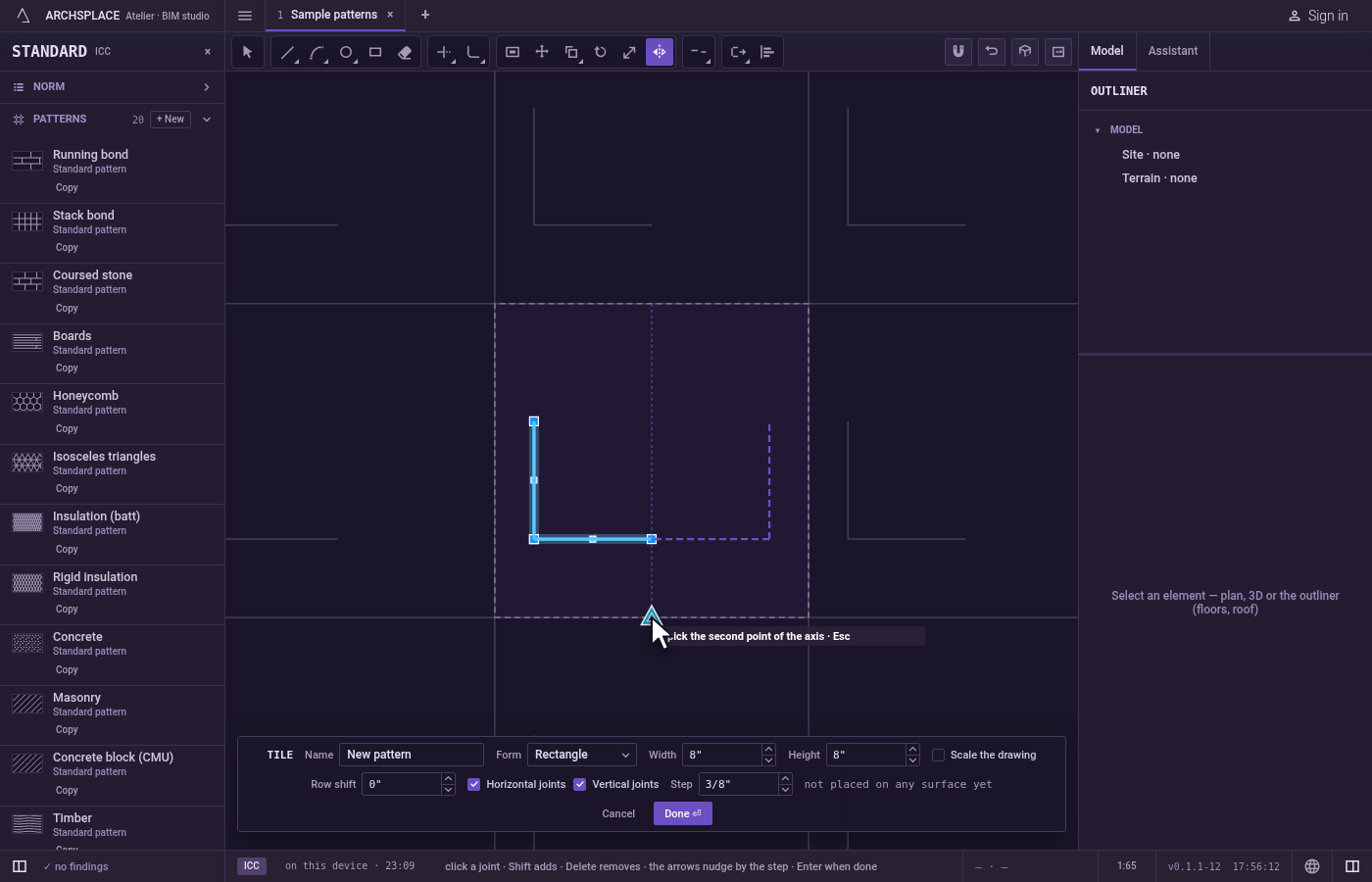
Mirror reflects joints across a line. You choose the joints, then give the line by two points, and a reflected copy is laid on the other side. A ghost of the reflection follows the pointer as you place the second point of the line. The originals stay, so drawing half a motif and mirroring it gives you the whole, exactly symmetric.
It is the same Mirror as in the other editors of the studio, acting here on the joints of the tile.
When to use it
- To build a symmetric motif from one half.
- To reflect a shape across the middle of the tile.
- To flip joints in place, with erasing the source switched on.
The steps
Choose the joints. Select them before taking the tool, and Mirror uses them at once. Otherwise Mirror asks select objects: click joints to add them, or drag a box (to the right it takes what lies wholly inside, to the left what it touches),
Shifttakes a joint out,Fdraws a fence that takes every joint it crosses, andEnterends the choice.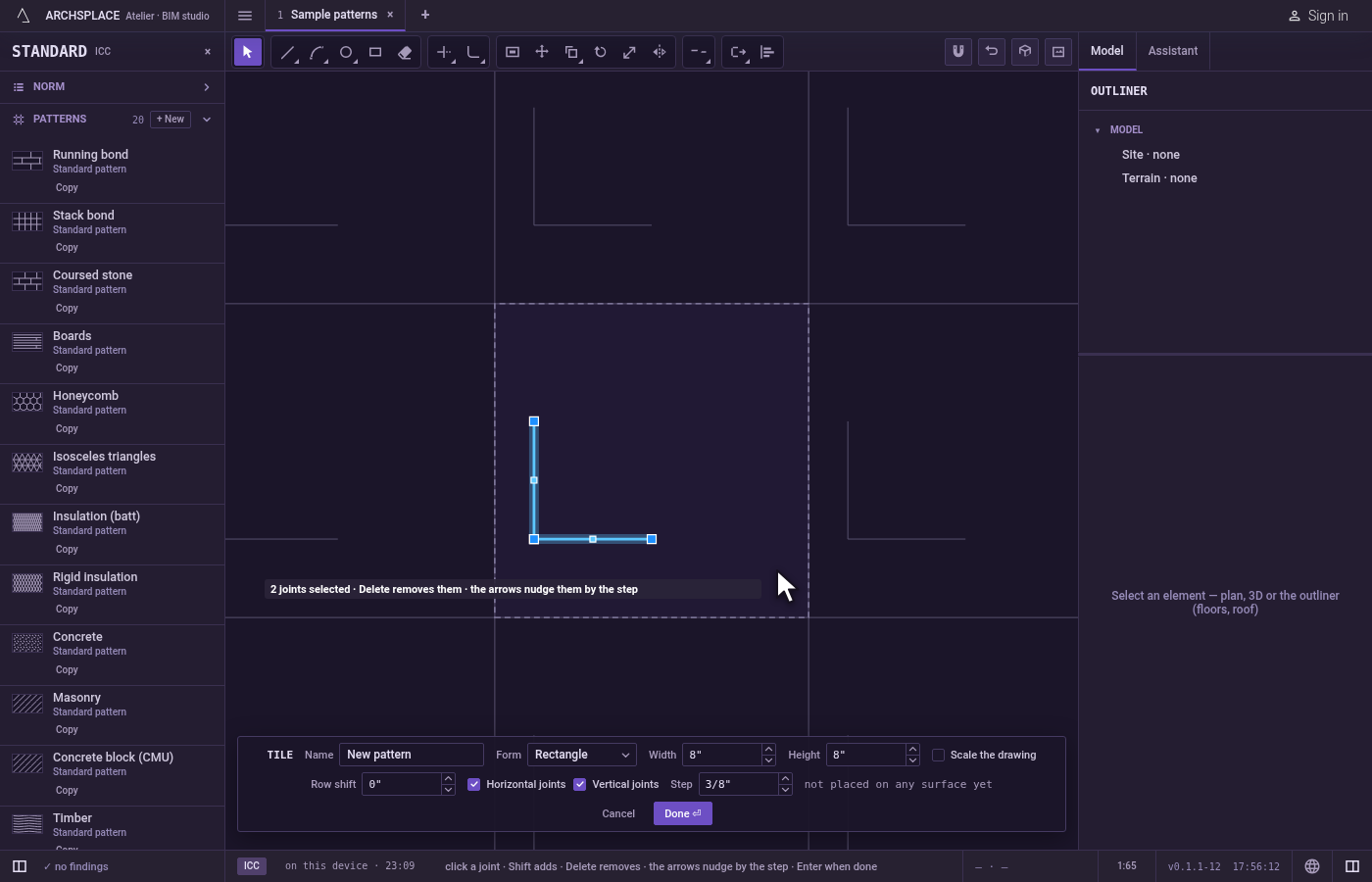
Take the tool. Type
MthenIone after the other, or click Mirror on the bar. TheMopens Move for a moment, and theIcompletes Mirror.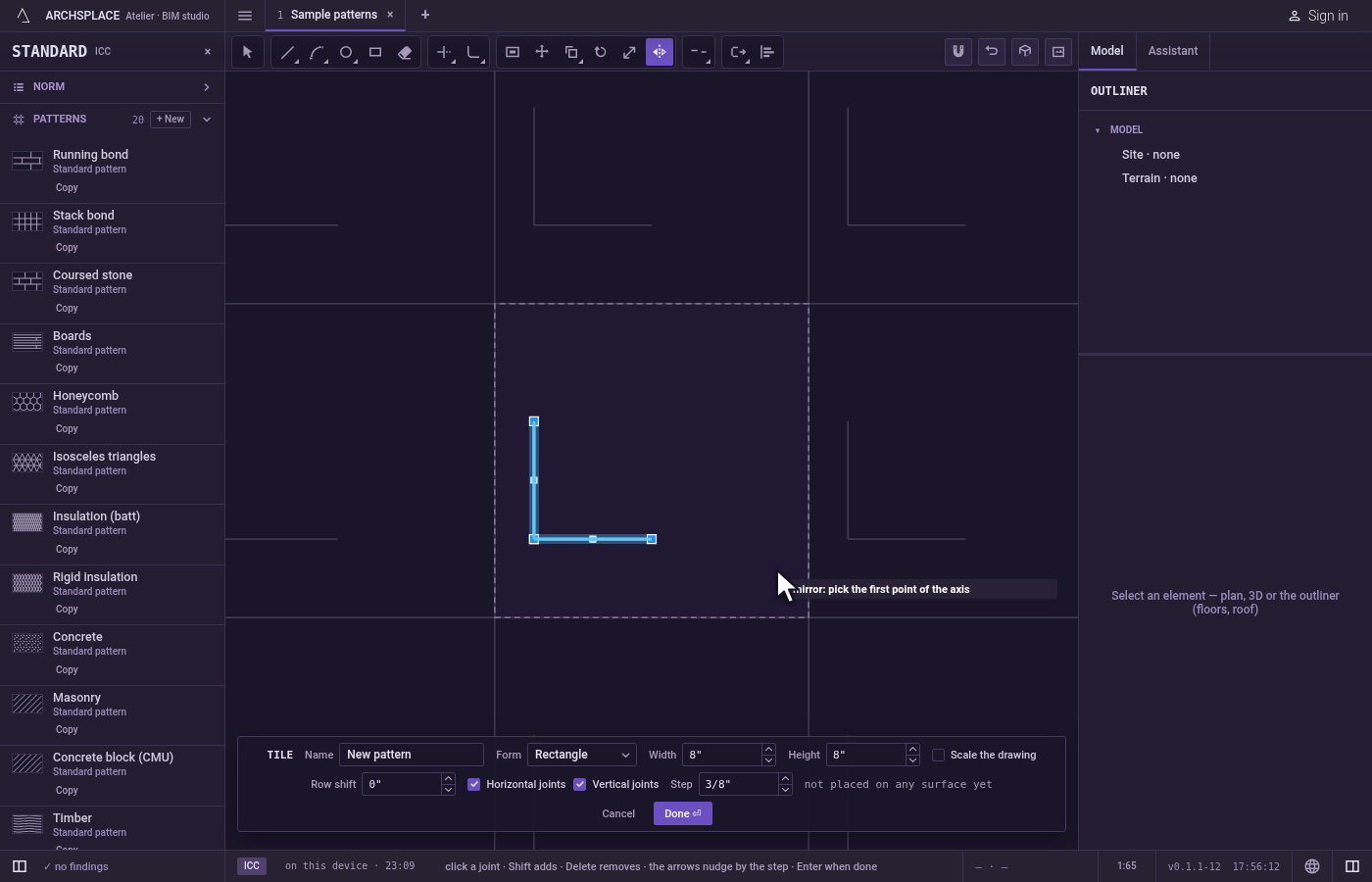
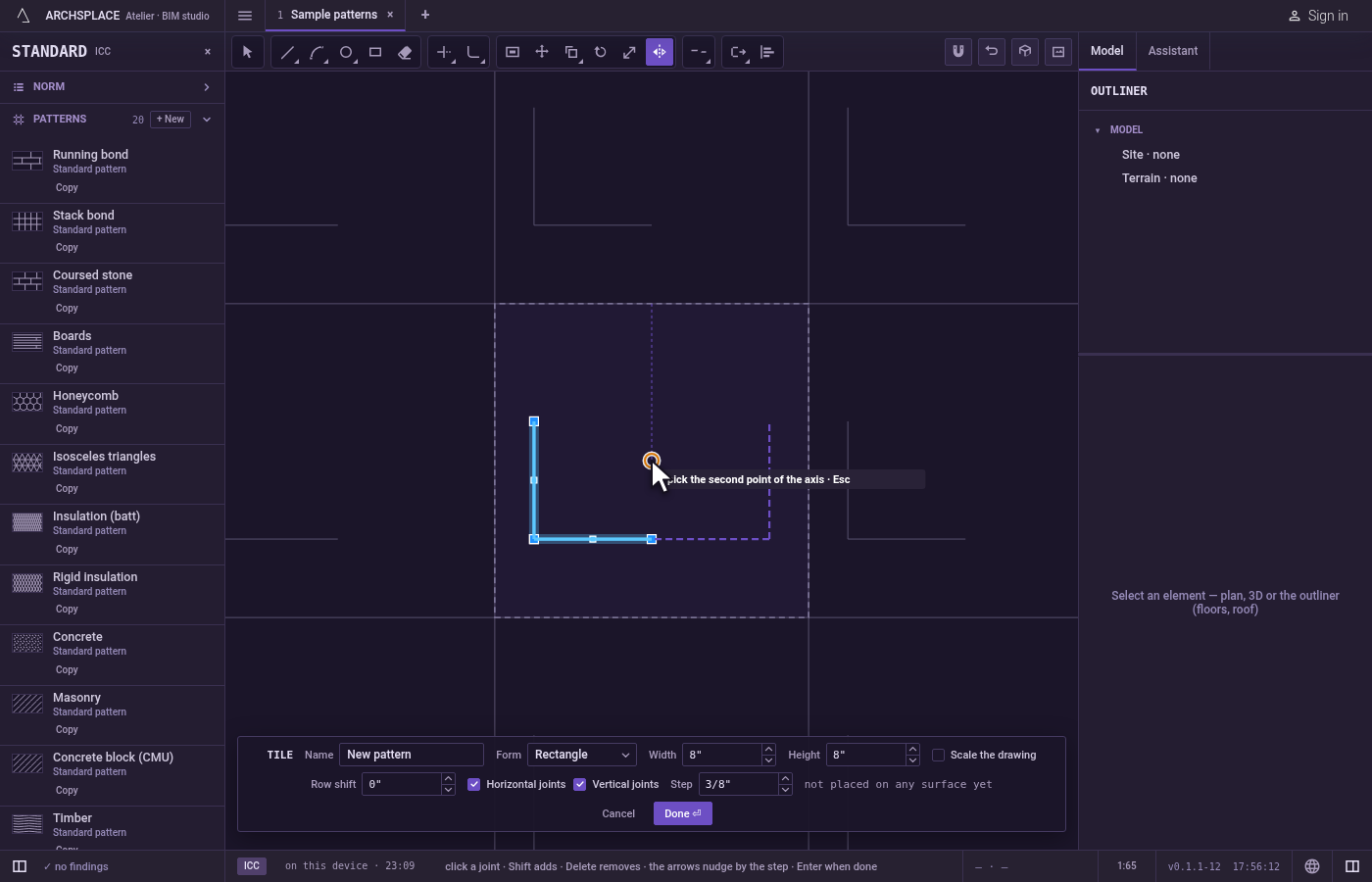
Pick the first point of the line. Click it. The tile's corners, the middles of its sides and its centre are magnets, so a line through the middle of the tile is two clicks.
Pick the second point. The reflection follows the pointer. Click to lay it.
Erase the source, if you want. Press
Eto switch on erasing the source: the joints are then reflected in place instead of copied. The hint shows erasing the source while it is on.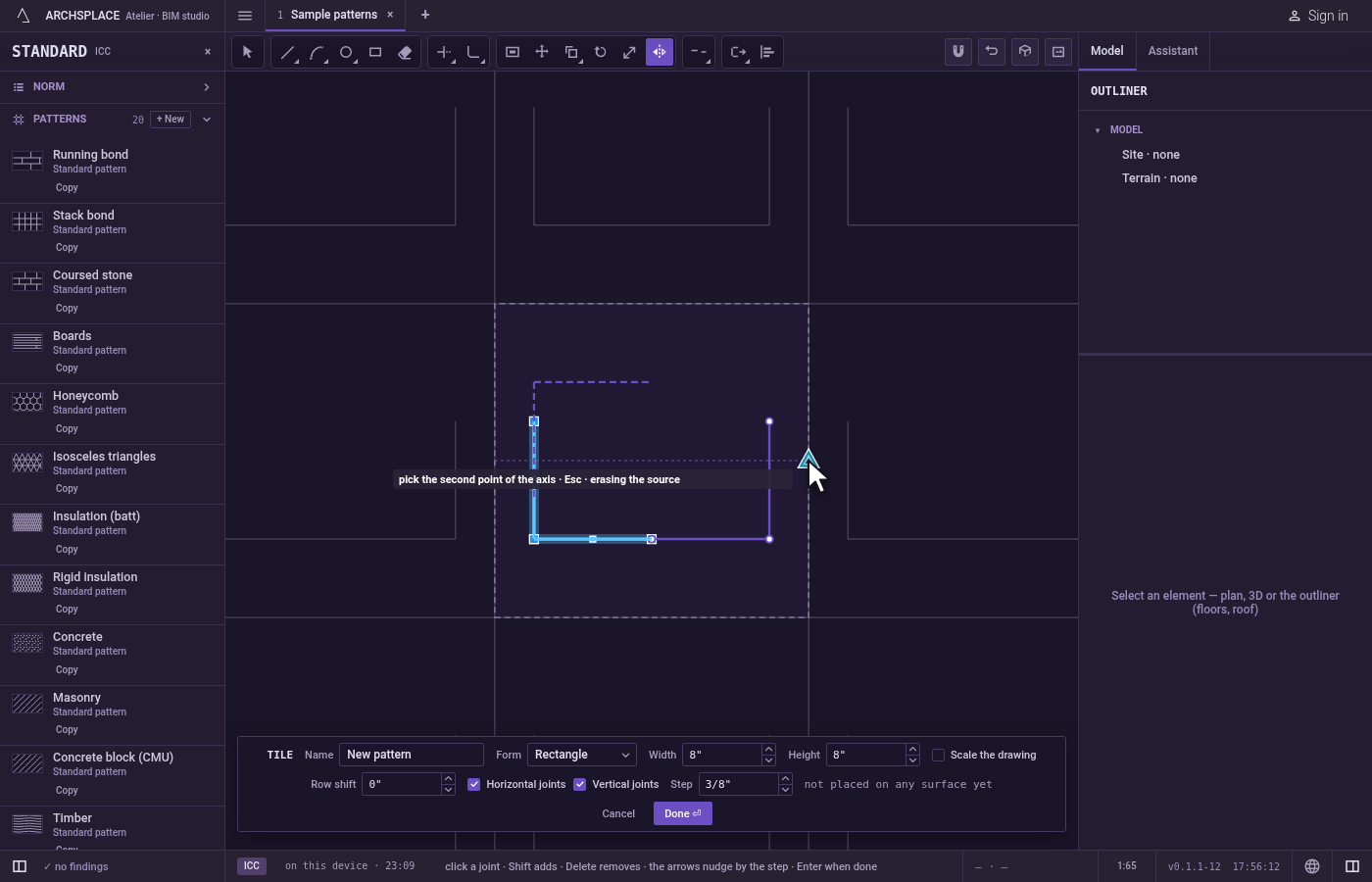
Mirror again or finish. After a mirror, the same joints stay selected and Mirror asks for the first point of a new line.
Escapedrops the first point, then leaves Mirror for Select.Ctrl+Zundoes the last mirror. Press Done on the bar at the foot to hand the tile back.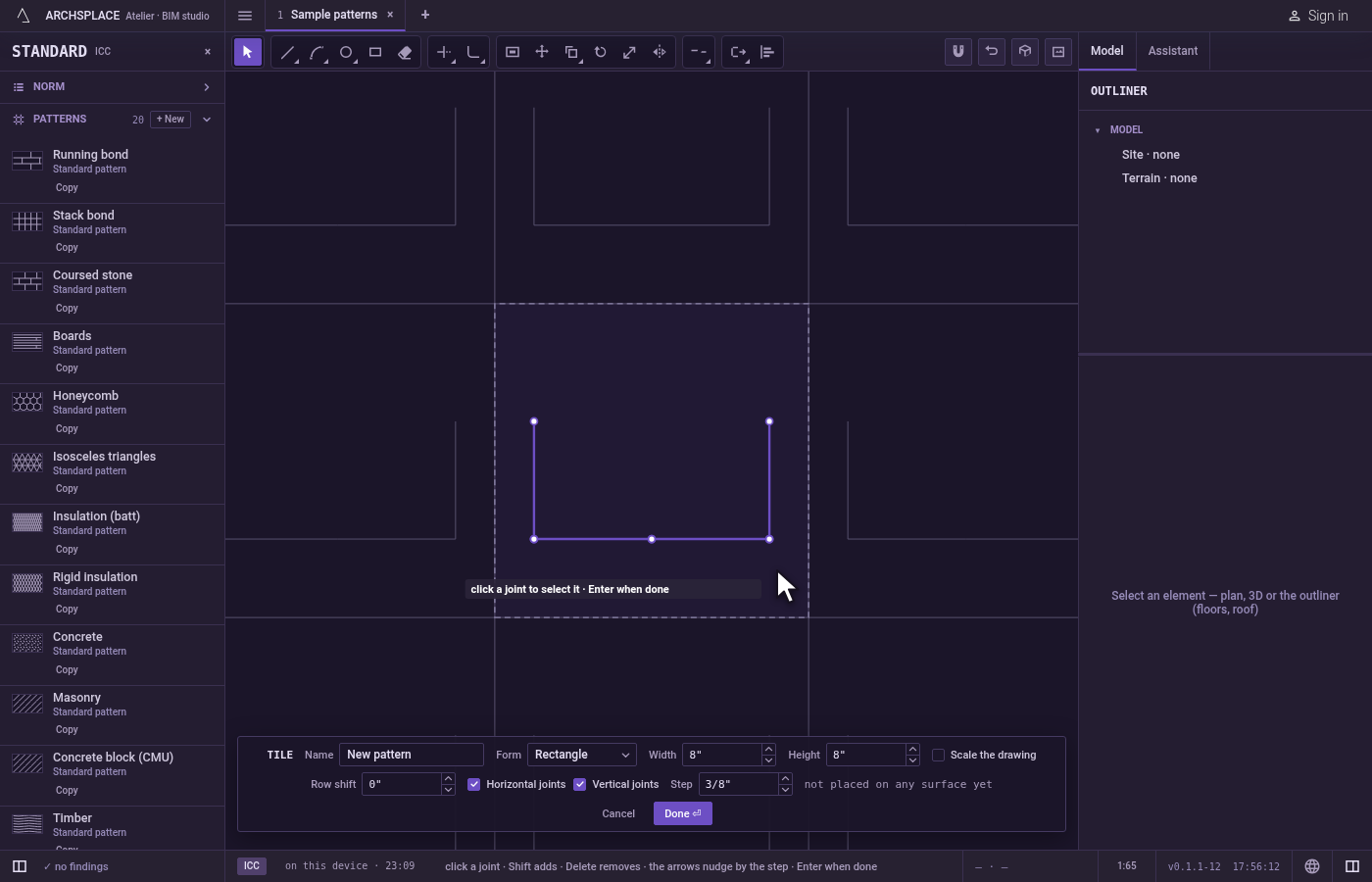
What it refuses
- A line of no length. A second point on the first gives no line, and nothing happens.
- A shape that would leave the tile. A reflected curved or closed joint that would stand outside the tile is not laid, and the editor says a shape must stay inside the module.
- A straight joint across the edge. It is not refused: the reflection is cut at the tile's edge and only the part inside is kept.
What it writes to the contract
Nothing while you work: the change stays in the tile editor, where Ctrl+Z steps back through it. When you press Done, the whole tile is written to the project's patterns in one step you can undo, every joint as its points in metres from the tile's lower-left corner, each reflection a joint of its own. A standard pattern is never changed: Done saves the project's own version of it under the same name, and every surface that lays it follows. Save as new writes a new pattern instead. Cancel writes nothing.
Related
Common questions
Does Mirror keep the original joints?
Yes, by default the originals stay and a reflected copy is added. Press E to switch on erasing the source, and the joints are reflected in place.
How do I mirror across the middle of the tile?
Pick the middles of two opposite sides of the tile as the two points of the line. They are magnets, so the pointer lands on them exactly.
How do I open Mirror from the keyboard?
Type M then I, one after the other. The M opens Move for a moment, and the I completes Mirror.